Make an animated device mockup as a video or GIF, in your browser
A still mockup gets a glance; a four-second tilt sweep gets a stop. Flicka Mockups renders the composition you already made as WebM, MP4 or GIF, frame by frame, in your browser.
Feeds move. A still screenshot in a device frame is fine on a landing page, but in a timeline or a Product Hunt gallery, a few seconds of motion is what makes people stop. Making that clip has meant After Effects templates or a screen recording of a mockup site — both slow, both lossy. Flicka Mockups renders the mockup you already composed as a short clip, in the browser, from the same layers you see.
This guide covers the four motion presets, which format to render for each platform, and the settings that keep the file small. The preview is free; rendering a file is Pro.
Step 1: Compose the still first
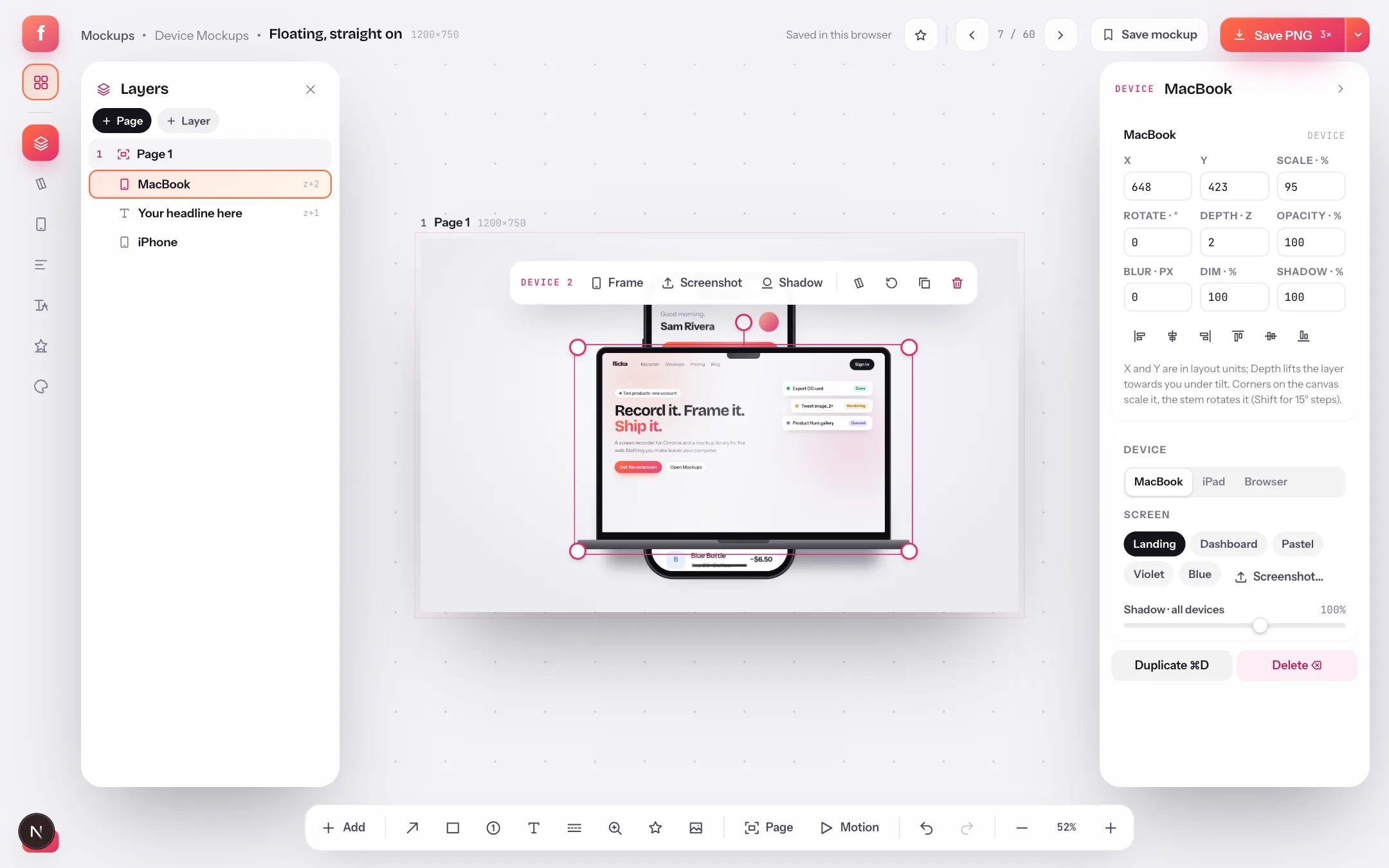
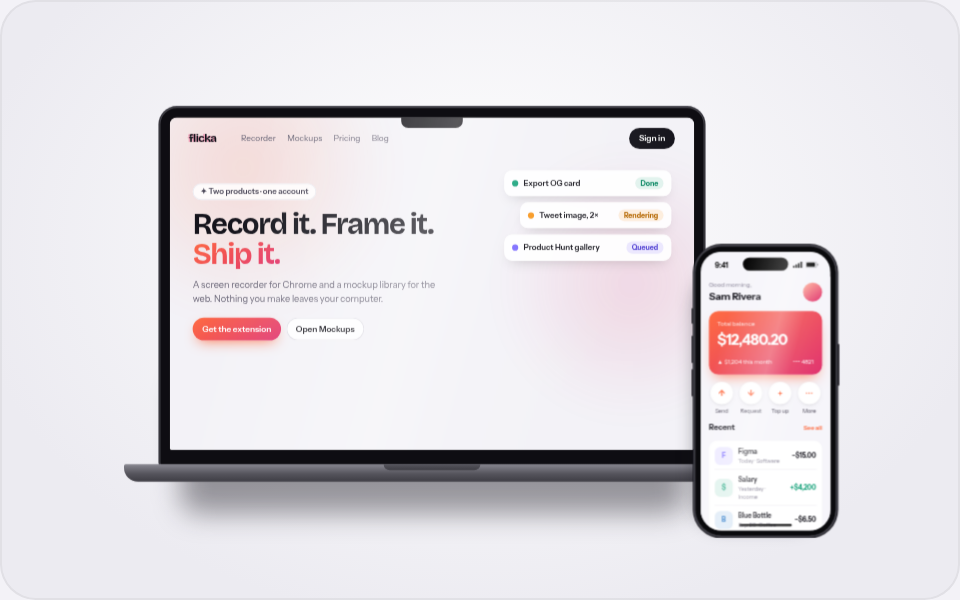
Motion exaggerates whatever is already there, so finish the still: pick a layout, drop your screenshot, set the backdrop and shadows, and check the 3D tilt looks right from a few angles. If you are new to the editor, the layers and snapping guide covers that part. Multi-device scenes animate best — the parallax between a MacBook in back and a phone in front is where a sweep earns its keep.
Step 2: Pick a motion preset
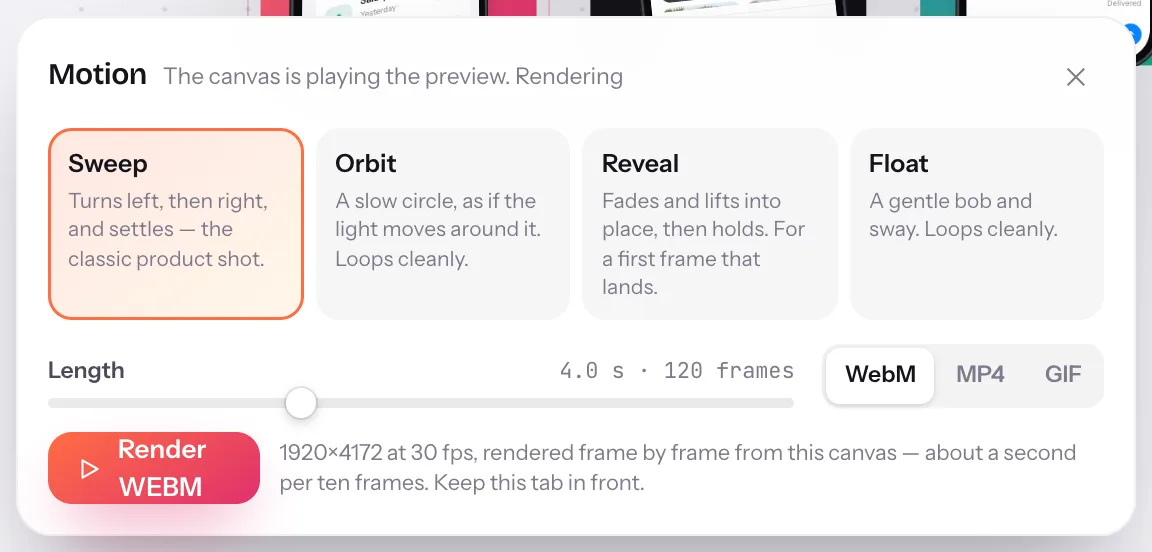
Press Motion in the dock. The canvas starts playing the selected preset immediately, so you judge it on your own composition, not on an example.
- SweepTurns left, then right, and settles — the classic product shot. The safest default for a hero clip.
- OrbitA slow circle, as if the light moves around the device. Loops cleanly, so it suits a GIF or a muted autoplay.
- RenderRenders the clip frame by frame from this canvas and saves the file. The line beside it says the pixel size and frame rate.
| Preset | What it does | Use it for |
|---|---|---|
| Sweep | Turns left, right, settles | A hero clip, a launch tweet, the first frame of a demo |
| Orbit | A slow, continuous circle | Loops: GIFs, muted autoplay, a background on a landing page |
| Reveal | Fades and lifts into place, then holds | The opening of a longer video, a feature announcement |
| Float | A gentle bob and sway | Loops that should feel calm — docs, a pricing page, a store listing |
Step 3: Set the length and the format
The slider runs from two to eight seconds; the readout shows the frame count at 30 fps. Four seconds is the sweet spot for a sweep; orbits and floats loop, so three seconds is plenty. Then pick the container.
| Format | Codec | Size and rate | Where it belongs |
|---|---|---|---|
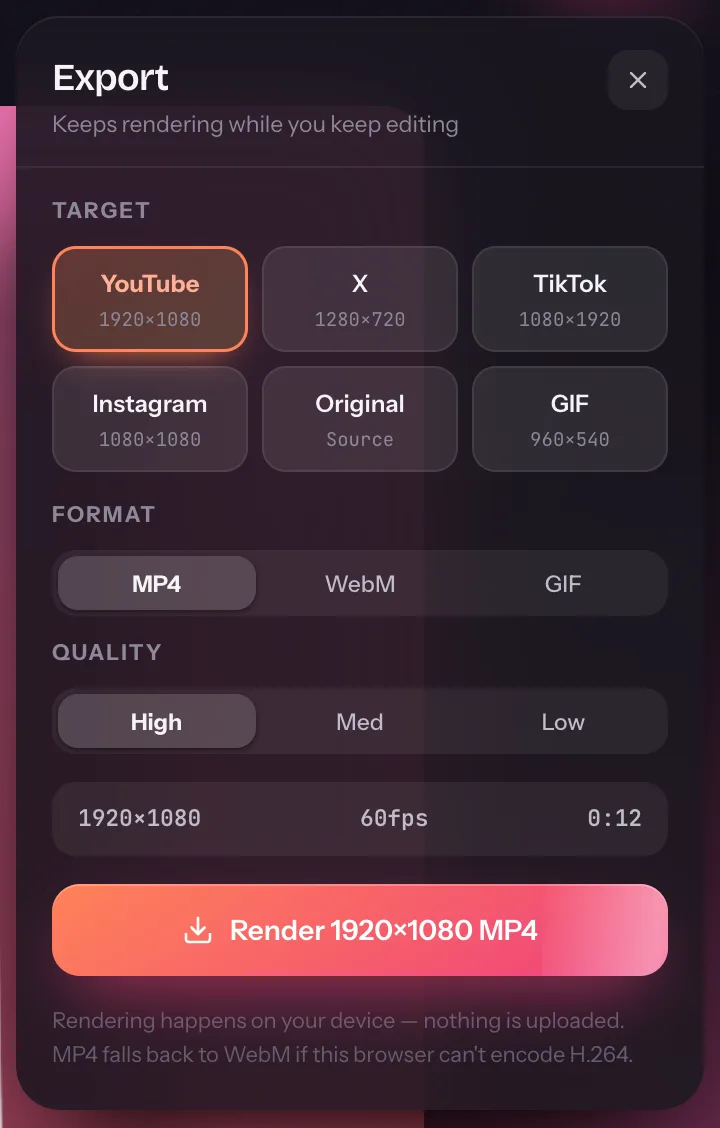
| MP4 | H.264 through WebCodecs | Up to 2× the canvas, 30 fps | X, LinkedIn, Product Hunt, Slack, anywhere that embeds video |
| WebM | VP9 (VP8 as a fallback) | Up to 2× the canvas, 30 fps | Your own site, docs, places that prefer open codecs |
| GIF | Palette encoder | 720 px wide, 12 fps | Markdown, READMEs, chat tools that refuse video |
Where the clip goes next
- Product Hunt gallery: an MP4 sweep as the first gallery item, with the still version as the thumbnail.
- Launch tweet or LinkedIn post: MP4, four seconds, the device filling the frame; the post text carries the claim.
- README or docs: a GIF orbit or float under the first heading, where video embeds don't work.
- Store listing: Apple and Google want video in their own formats and sizes, so render the still set with the store templates and use the clip on your site instead.
Animated mockups: quick answers
Which format should I use for an animated mockup?
MP4 (H.264) for X, LinkedIn, Product Hunt and anywhere that accepts video; WebM for the web and places that take it; GIF only where video is not allowed. GIFs are rendered at 720 px wide and 12 fps to stay a sensible size.
How long does rendering take?
About a second per ten frames: a 4-second clip at 30 fps is roughly 12 seconds. Rendering reads the live canvas, so keep the tab in front while it runs; a progress bar and Cancel are shown.
Can I preview the animation for free?
Yes. The Motion button plays every preset on the canvas for everyone. Rendering a file is Pro.
Does the video upload anywhere?
No. Frames are captured from the stage in your browser and encoded with WebCodecs (and the GIF palette encoder) on your device; the file lands in your downloads.