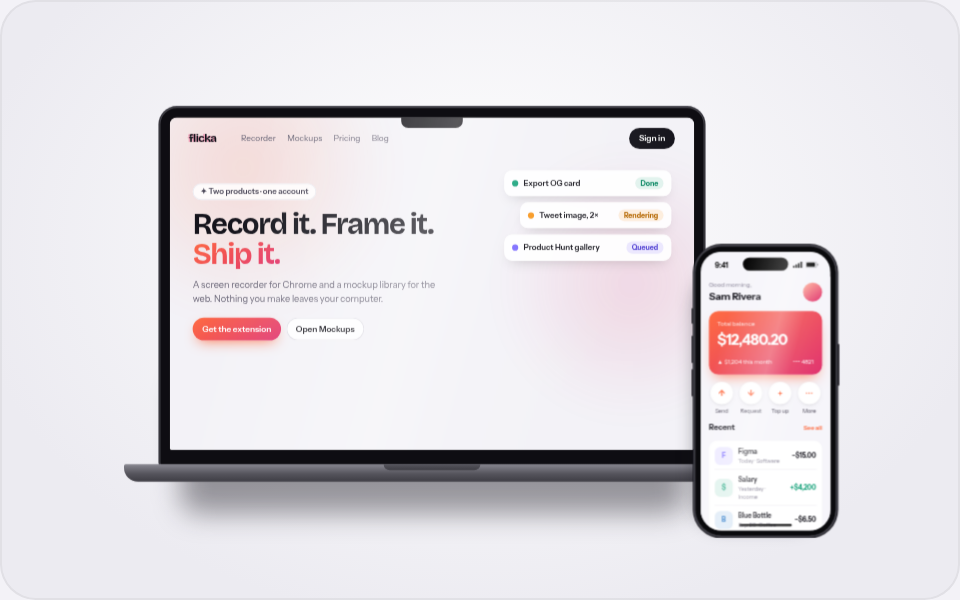
A free online mockup editor with layers, snapping and align tools
Most mockup generators give you a template and a few sliders. Flicka Mockups opens every layout as real layers on a canvas — drag, snap, align, add pages — and exports retina PNGs without uploading a pixel.
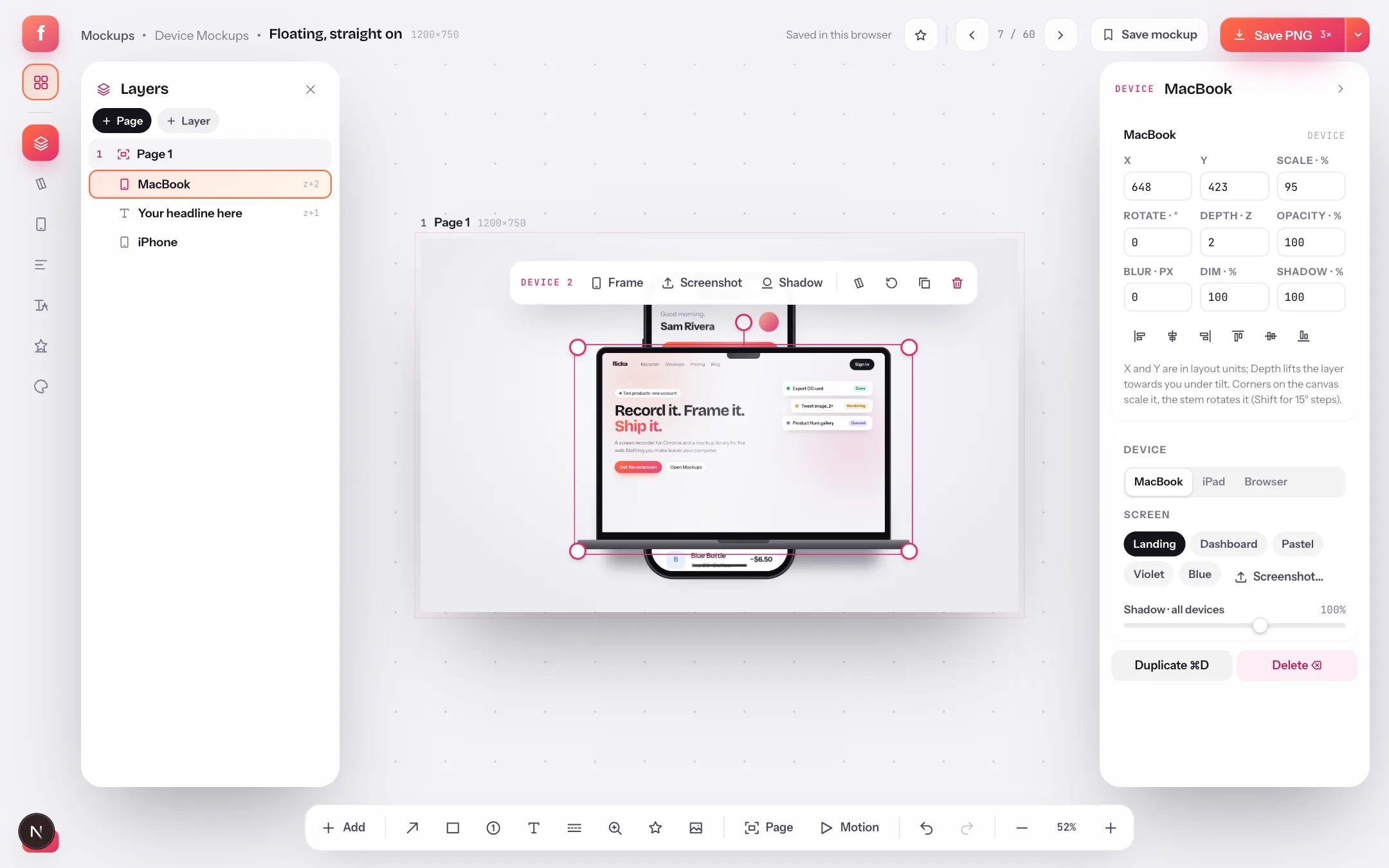
A mockup template is a fast start and a slow finish. The screenshot drops in nicely, and then you want the phone a little to the left, a headline above it, the shadow softer — and the template has no slider for that. Flicka Mockups now opens every layout as a document of layers on a canvas, so the layout is where you start, not where you stop.
This guide walks through the editor the way you would use it on a launch day: open a layout, add and arrange layers with snapping, line things up, set exact values, add a page, and export. Everything here is on the free plan, and nothing you drop in leaves your computer.
- Pages and layersEvery page is a row; every element on it is a nested layer. Click to select, drag to reorder, hover for hide, lock, duplicate and delete.
- + LayerDevices, a plain screenshot, headlines, label pills, shapes, images and social cards. New layers land in the middle of the page, selected.
- + PageA blank page, a duplicate, a page at a store size, or a whole App Store or Google Play set.
- InspectorWhat the selection is and its numbers — X, Y, scale, rotation, opacity, depth, blur, shadow — plus the device model and screenshot.
- AddThe same insert menu from the dock, next to the annotation tools: arrow, box, callout, text, blur, zoom lens, sticker.
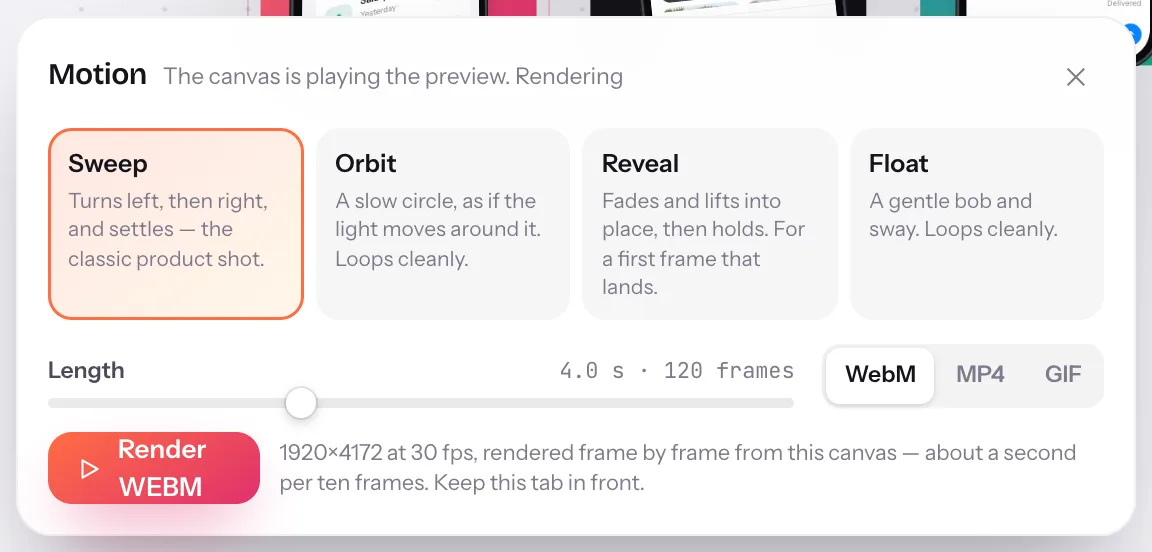
- MotionPlays a sweep, orbit, reveal or float on the canvas; Pro renders it as a video or GIF.
- Export optionsFormat, resolution to 4×, transparent background, this page or every page, and the zip.
- Zoom⌘0 fits every page, ⌘2 fits this page, ⌘1 is 100%. ⌘-wheel zooms at the cursor; space-drag pans.
Step 1: Open a layout and add a layer
In the library, open any layout — Floating, straight on is a free one-device scene. Its iPhone is now a layer in the Layers panel. Press + Layer (or Add in the dock) and pick Headline + subline, then MacBook. Each new layer appears in the middle of the page, selected, with handles on its corners and a rotation stem above it.
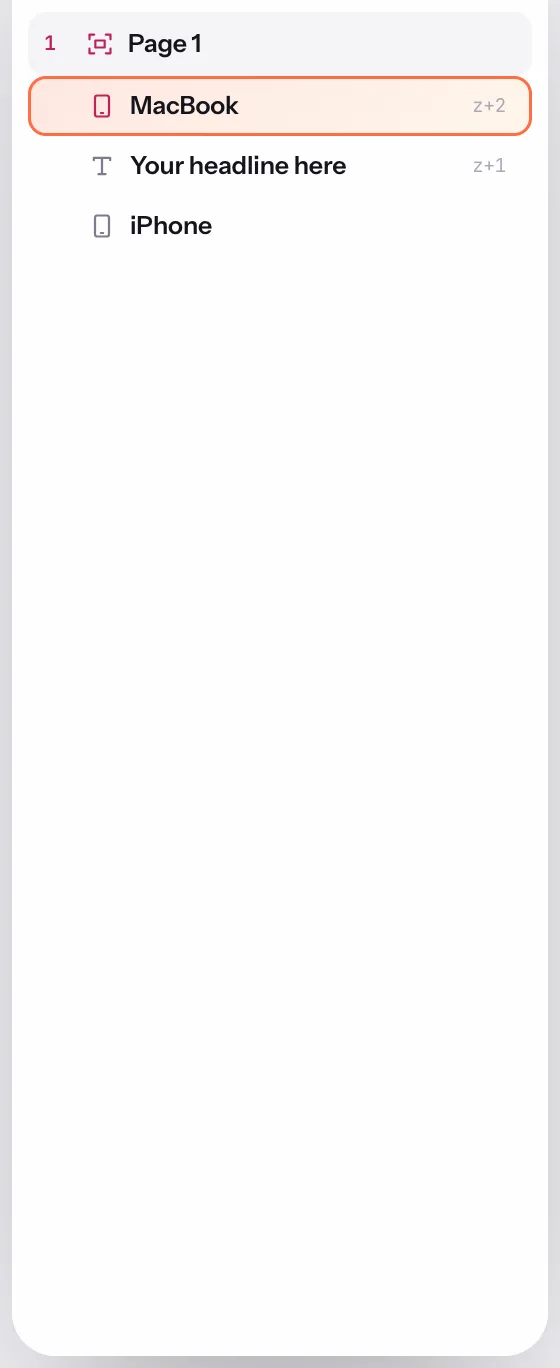
- Page rowThe page's name, number and store check. Click it to select the page; the inspector then shows its size, backdrop and store size.
- Layer rowTop of the list is front of the stack. Drag rows to reorder, or use ⌘] and ⌘[ with a layer selected.
- + PageBlank, duplicate, a store size, or a set.
- + LayerGrouped by kind: Devices, Words, Shapes and images, Social cards.
Step 2: Drag, snap and resize
Drag the MacBook towards the middle of the page. As its centre nears the page's centre, a guide appears and the layer snaps to it; the same happens at page edges and against the edges and centres of other layers. Hold Alt to drag without snapping, Shift to lock the drag to one axis. The corner handles scale the layer, the stem rotates it (Shift for 15° steps), and a readout follows the pointer with the position in page pixels.
Snapping is what makes a composition look designed rather than placed. Two devices whose centres sit on the same line, a headline that starts where the device's frame starts — those relationships are a snap away instead of a pixel-nudging session.
Step 3: Select several layers and align them
Shift-click a second layer (on the canvas or in the Layers panel), or drag a marquee on empty canvas, or press ⌘A. The inspector switches to the selection and shows the six align buttons: left, centre, right, top, middle, bottom. Two distributes appear with three or more layers. Drag moves the whole selection; ⌘D duplicates it; ⌘G groups it.
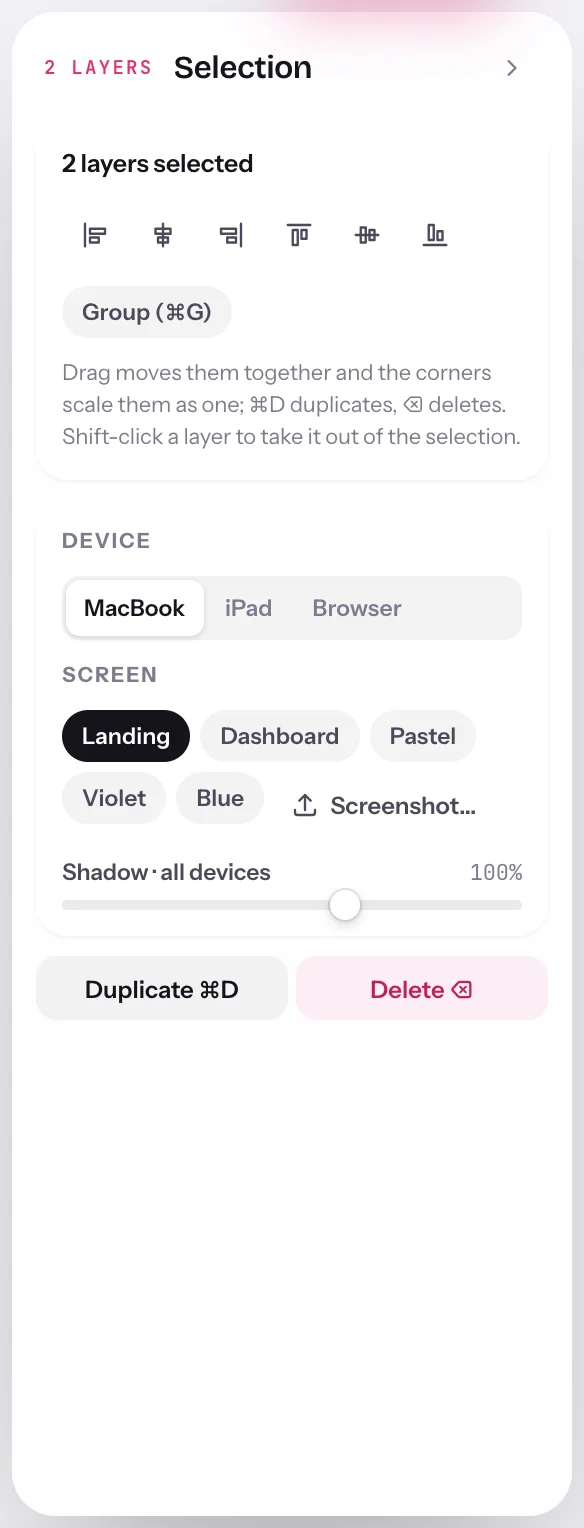
- The selectionThe inspector names how many layers are selected; shift-click a layer to take it back out.
- Align centresHorizontal centres on one line. With one layer selected, align works against the page instead.
- Align leftLeft edges together. Top, middle, bottom and right sit beside it.
Step 4: Set exact values in the inspector
When eyeballing is not enough, select one layer and type. X and Y are in the page's own pixels, scale and opacity in percent, rotation in degrees. Depth lifts a layer towards you under 3D tilt; blur and dim push it back; the shadow field is per device. The same panel holds the device model, its screen, and the screenshot slot.
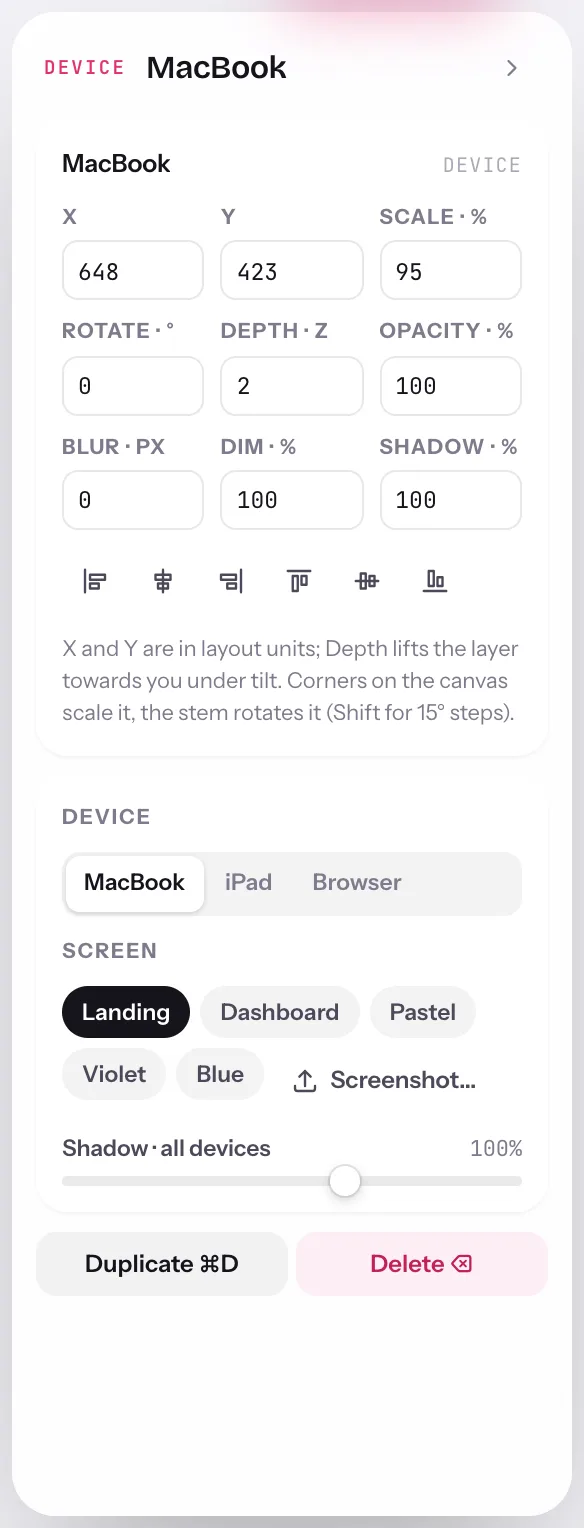
- X and YThe layer's centre in page pixels. Nudge with the arrow keys; Shift nudges by ten.
- ScalePercent of the layer's natural size. The corner handles change the same number.
- RotateDegrees, clockwise. The stem above the selection does the same by hand.
- Align to the pageWith one layer selected, these align it to the page's edges and centre.
The shortcuts worth learning
- ⌘0 · ⌘2 · ⌘1Fit every page · fit this page · 100%
- ⌘ + wheel · Space + dragZoom at the cursor · pan the canvas
- ⇧⌘H · ⇧⌘LHide · lock the selected layer
- ⌘] · ⌘[Bring forward · send backward (⇧ for front and back)
- ⌘D · ⌘A · ⌘GDuplicate · select all · group
- T · L · R · A · NText · label · box · arrow · callout annotations
- ⇧R · ⇧GRulers · the 20/100 px grid
- Alt while draggingDrag without snapping
Step 5: Add a page and export
Pages sit side by side on one dotted canvas as artboards. + Page adds a blank page at the same size, a duplicate, a page at a store size, or a whole store set; ⌘0 zooms out to see them all. The export button renders the selected page as a retina PNG, JPG or WebP; the menu switches it to every page as a zip. Hidden layers stay out of the export, and the PNG is exactly what the canvas shows.
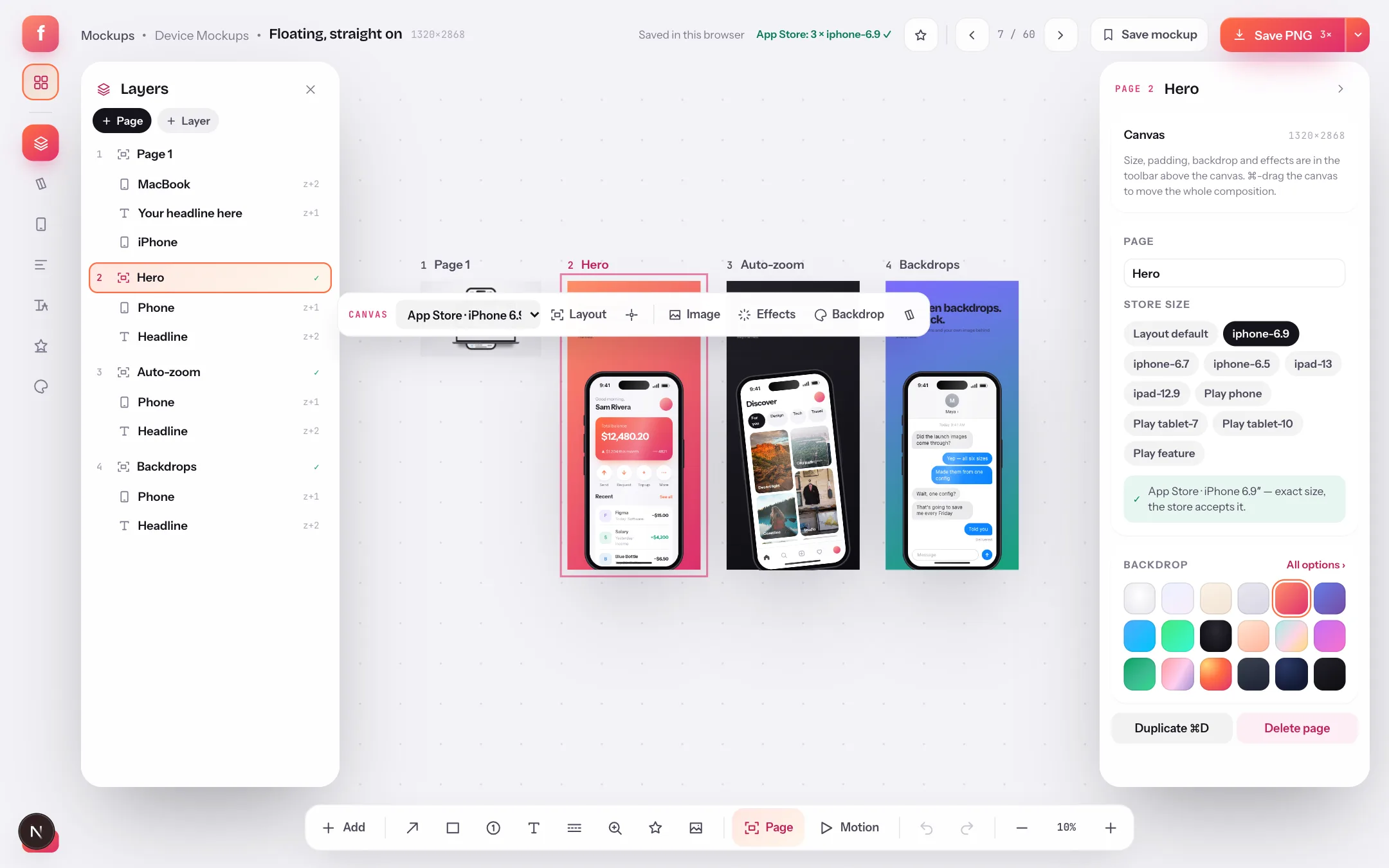
- Artboard labelNumber, name, size and the store check. Click to select the page, drag to move it, double-click to rename.
- Listing checkWhat the stores would say about the whole set, checked live as pages change.
- Page rowsThe same pages in the Layers panel, with their layers nested under them.
- + PageFree documents hold two pages; more pages and the store sets are Pro.
- Fit every page⌘0, so the whole set is in view while you edit one page.
Drafts: nothing to save, nothing uploaded
Every edit is saved as a draft in your browser about half a second later; the breadcrumb says Saved in this browser. The gallery's Drafts collection lists them with live previews and page counts, and a draft reopens exactly where you left it. Free keeps ten drafts; Pro keeps as many as you like, and can also save a finished setup as a named mockup you can start from again.
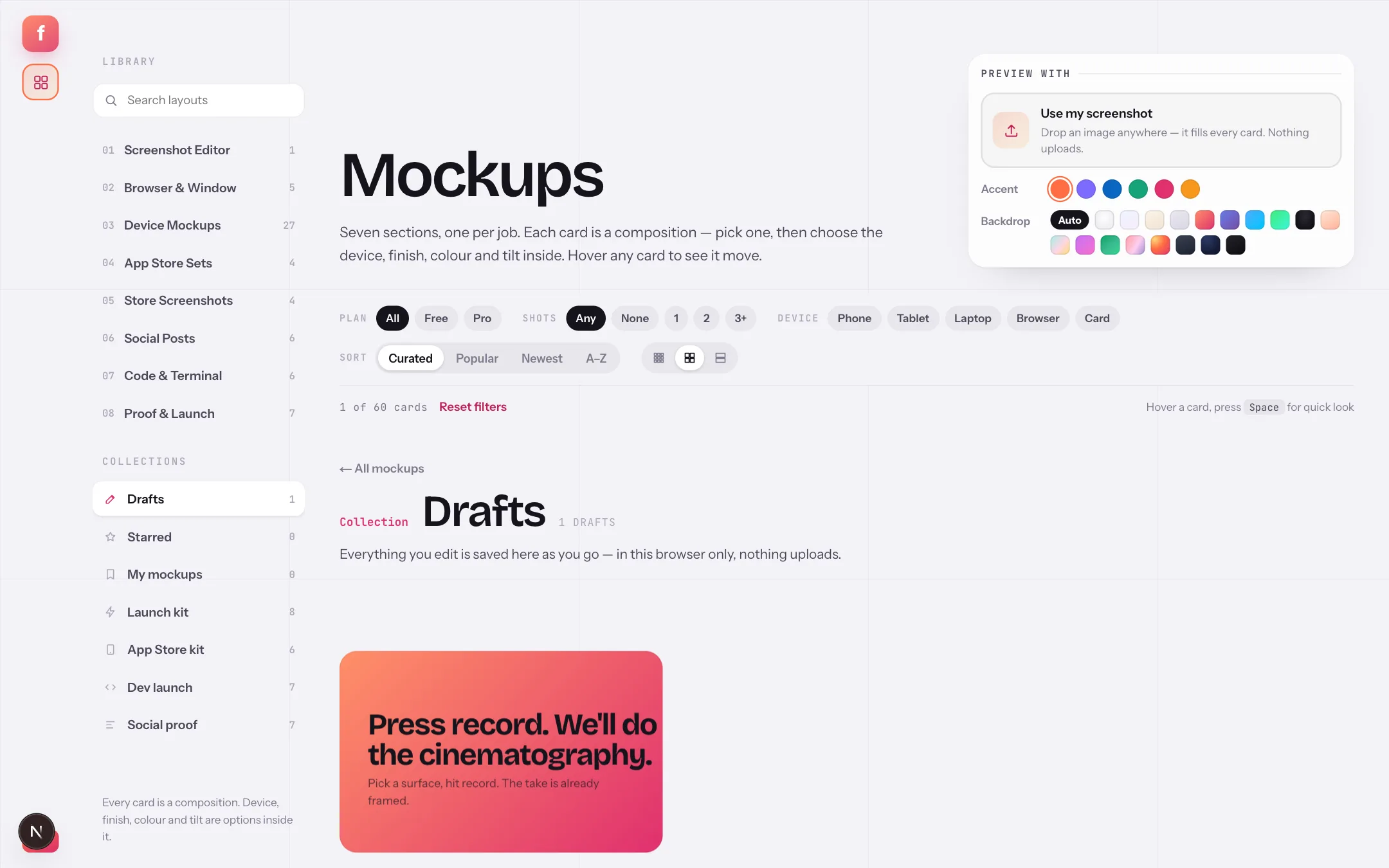
- DraftsEverything you edited, newest first.
- A draftRendered live from the saved document, with its page count and when it was edited.
- DeleteRemoves the draft from this browser. Nothing else holds a copy.
Mockup editor: quick answers
Is the mockup editor free?
Yes. Every editing tool — layers, snapping, align and distribute, the inspector, shortcuts, two pages per document — is on the free plan, with 16 of the 60 layouts. Pro opens the other layouts, unlimited pages and store sets, languages, motion export and the brand kit.
Does it upload my screenshots?
No. A screenshot you drop becomes data in your tab; composing and exporting run in your browser. Drafts are saved in your browser's own storage. Only sign-in and billing touch the network.
Can I add my own elements to a layout?
Yes. The Add menu inserts devices (iPhone, Pixel, iPad, MacBook, browser window), a plain screenshot, headlines and label pills, shapes, images or logos, and social cards. Anything a layout came with can be moved, hidden, locked, reordered or deleted.
Is this a Figma replacement?
For mockups and launch images, it covers the part of Figma people actually use: layers, transforms, snapping, alignment and export. It is not a general design tool — there are no components or prototyping — but you never have to leave the browser or keep a template file in sync.