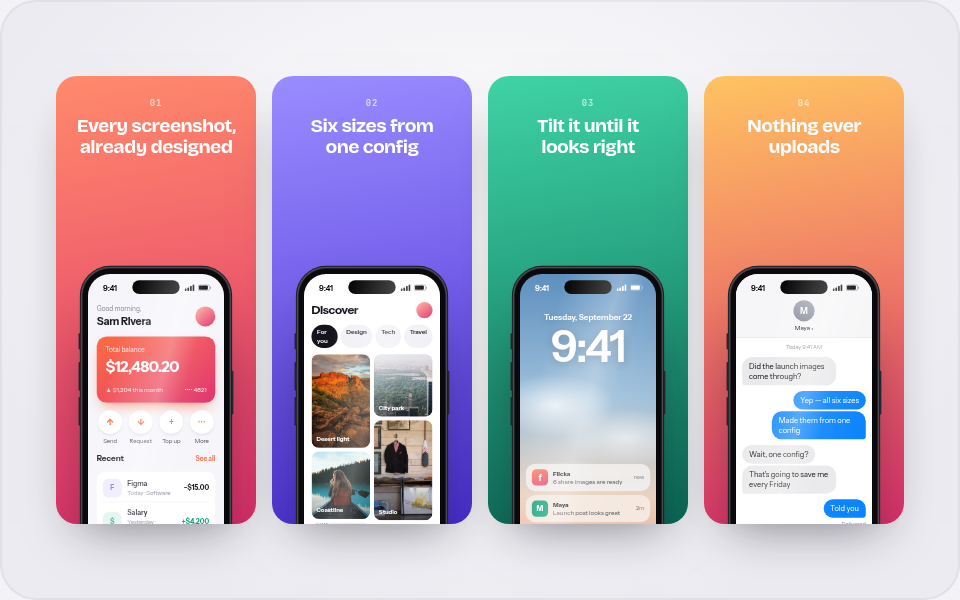
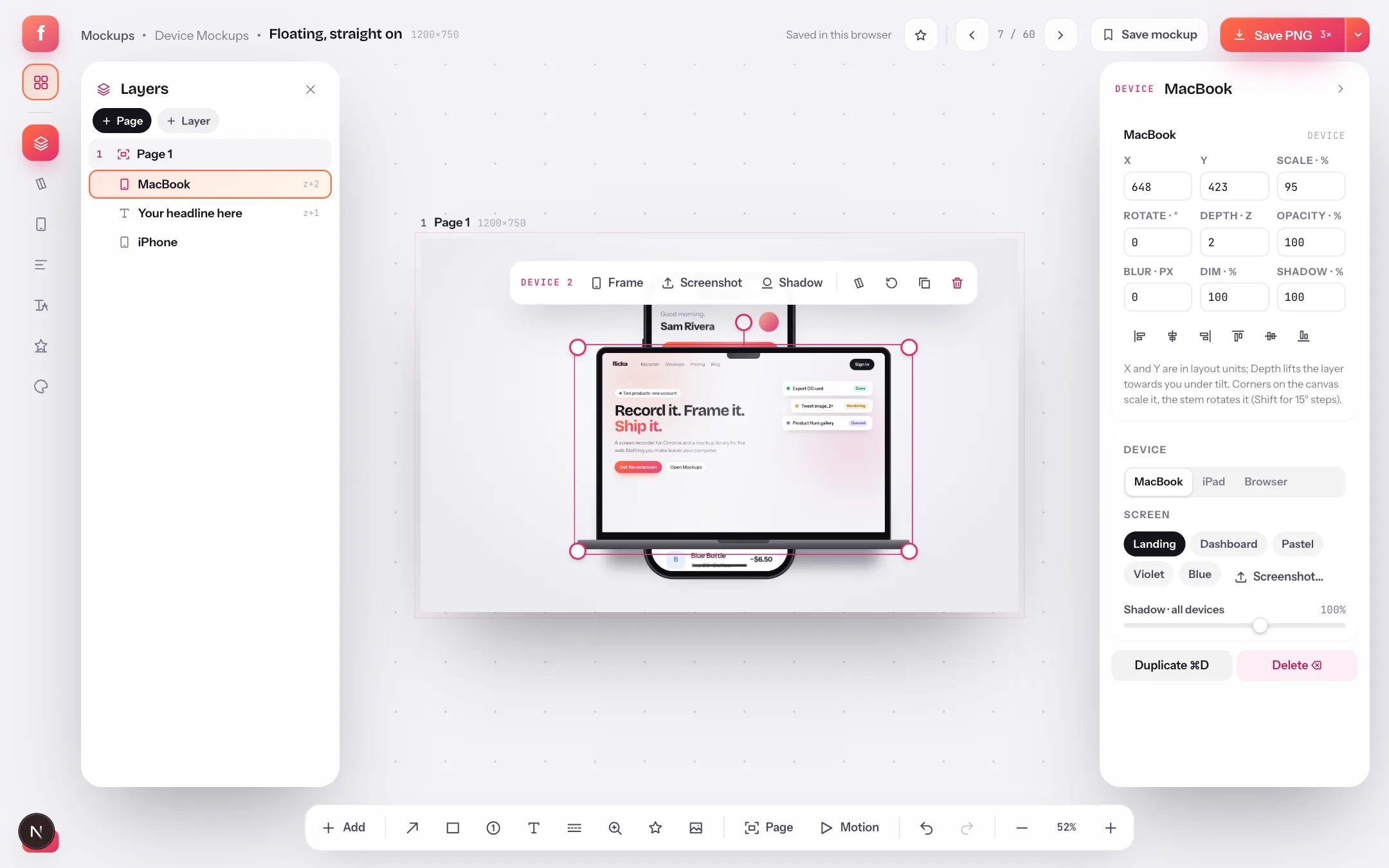
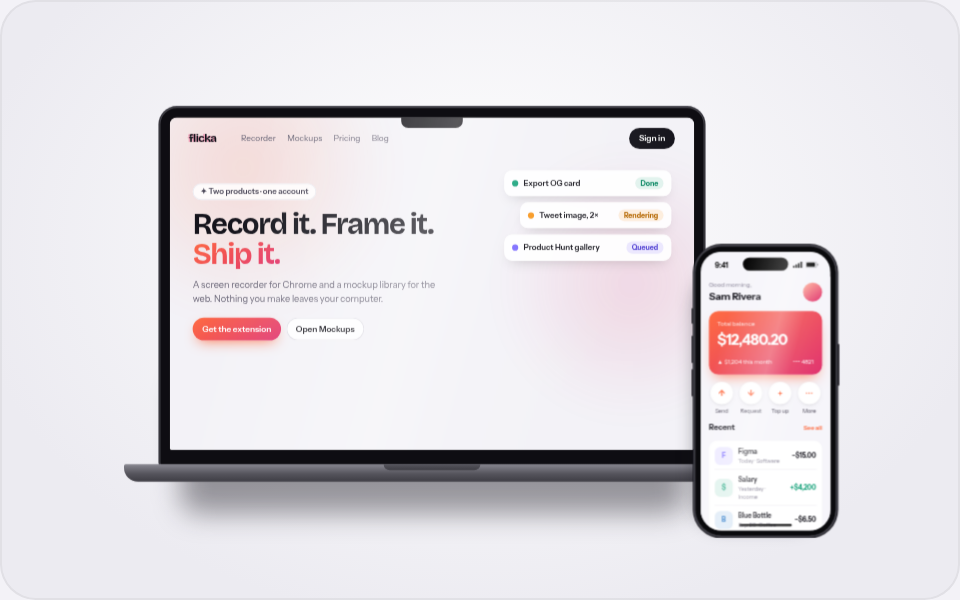
App Store screenshot templates: the 2026 sizes, sets and localization
Apple wants 1320×2868, Google wants at least four phone shots, and your copy exists in six languages. Here is how to make the whole set from templates, check it against store rules and export it per locale — in your browser.
Store screenshots are a layout problem with a compliance problem on top. Each panel needs a short claim, a device and a consistent look; the set needs the right number of panels at the exact pixel sizes each store wants; and if you sell in six countries, you need all of that six times. Flicka Mockups treats a store set as pages on one canvas: templates lay out each page at the store's size, a check marks each page and the set against the store's rules, and the zip export writes every page in every language.
This guide is the store-size reference and the walkthrough in one. If you want the older single-layout sets, where four panels live in one image, see App Store screenshots from one config; the artboard approach here is what to use when you want each page editable on its own.
The sizes the stores accept
| Store page | Pixels | Notes |
|---|---|---|
| App Store · iPhone 6.9″ | 1320 × 2868 | The size App Store Connect asks for first; it scales down to the smaller iPhones |
| App Store · iPhone 6.7″ | 1290 × 2796 | Still accepted; use it only if you already have assets at this size |
| App Store · iPhone 6.5″ | 1242 × 2688 | The older required size; accepted as a fallback |
| App Store · iPad 13″ | 2064 × 2752 | The current iPad Pro size |
| App Store · iPad 12.9″ | 2048 × 2732 | Accepted for older iPad listings |
| Google Play · phone | 1080 × 1920 | Minimum 1080 px on the short side; four of these make a listing eligible for promotion |
| Google Play · 7″ tablet | 1200 × 1920 | Optional |
| Google Play · 10″ tablet | 1920 × 1200 | Optional, landscape |
| Google Play · feature graphic | 1024 × 500 | Required; the banner behind the play button |
Step 1: Start from a store template
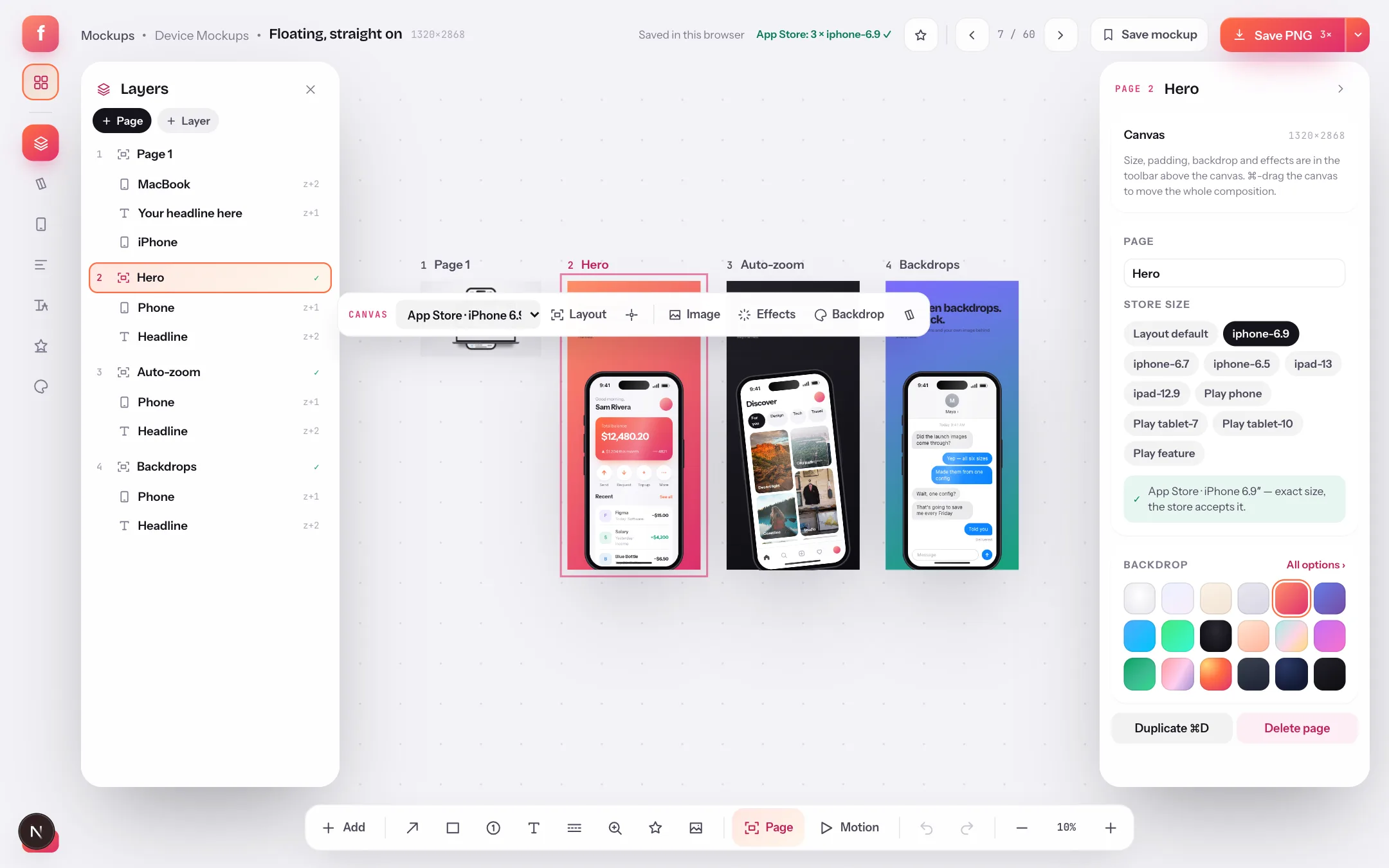
The gallery's Store Screenshots section holds a free Hero page — a headline, a subline and a phone at 1320×2868 — and three multi-page sets: Launch set (three iPhone pages), Launch set + iPad (three iPhone and two iPad pages) and Google Play launch set (four phone pages and the feature graphic). Each tile shows the set's first page; open one and every page is an artboard on the canvas.
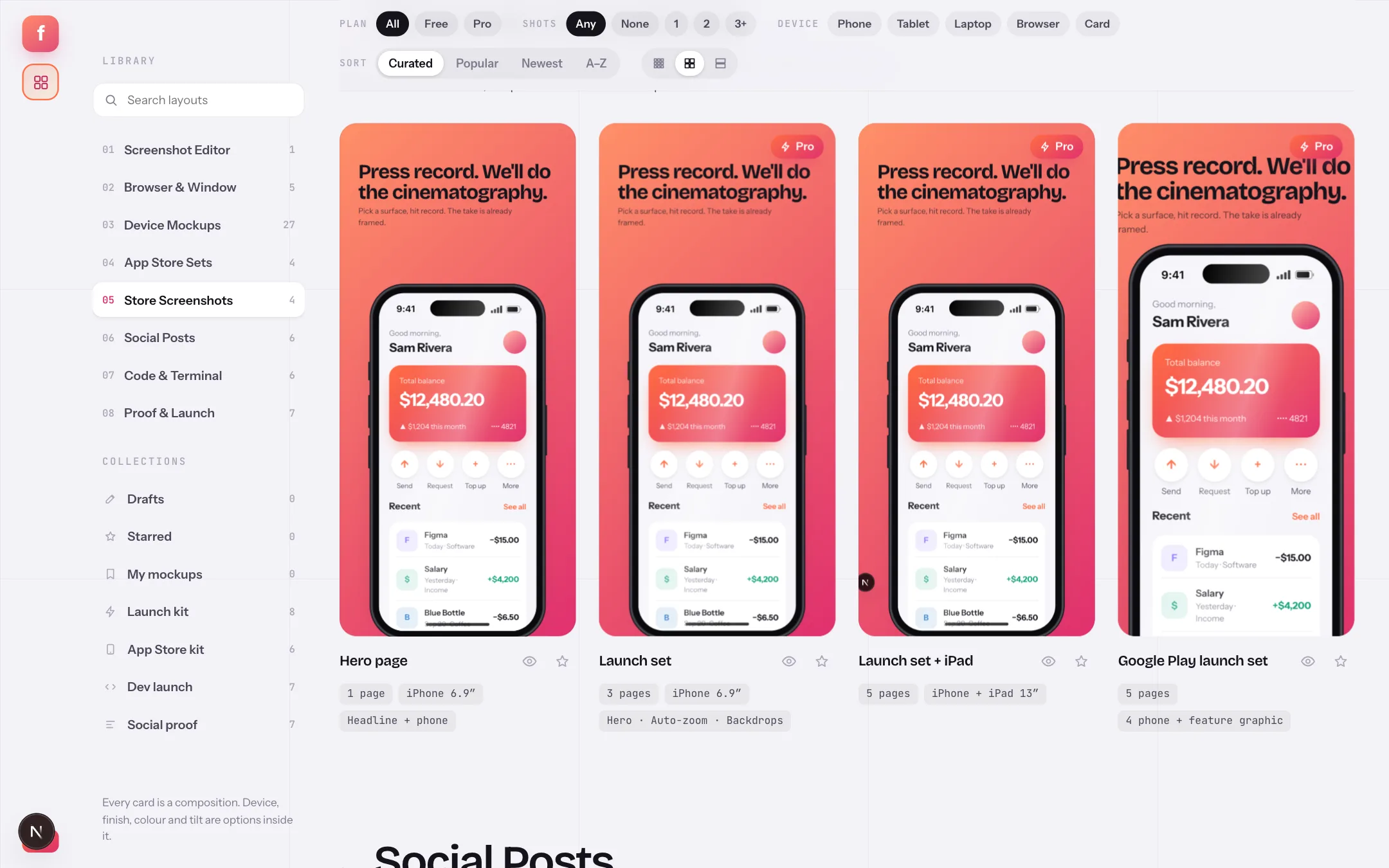
- Store ScreenshotsA section of its own, next to the single-image App Store Sets.
- Hero pageOne iPhone 6.9″ page: headline, subline, phone. Free, and the quickest way to see your app at store size.
- Launch setThree pages that tell a story — hero, a feature, a second feature — sharing one look.
You can also add store pages to any document: + Page offers This page at a store size, which refits what you have, or a fresh store page, or a whole set. The set's pages come with placeholder copy that says what to write there, never invented quotes or figures.
Step 2: Drop screenshots and rewrite the copy
Drop your app's screenshots onto the canvas: one on a phone fills that phone, several fill the empty phones in order, and any left over become new pages. Double-click a headline to edit it in place. Keep claims under about six words — store thumbnails are small until tapped — and lead with the product, not the logo.
- Page labelNumber, name, pixel size and a ✓ when the page is exactly a store size. Click to select the page; double-click to rename.
- Listing checkThe set as a store would read it — for example "App Store: 4 × iphone-6.9 ✓" or "Google Play: 4 phone shots ✓ · eligible for promotion".
- Pages in the treeEach page with its layers nested under it. Hover a row for move, duplicate and delete.
- + PageAnother store page or a set. A page shows ✕ if its size would be rejected.
- ⌘0Fit every page, so you edit one panel while seeing the sequence.
Step 3: Add the languages
Open the Words rail tab. It lists every headline, subline, button, label and caption on the page with a column for the base language and one for the selected language; untranslated cells say MISSING. Pick a language from the list (fifteen presets) or type a code. While a language is selected, the canvas shows it and edits change that language only. Pages share the language list; each page has its own words.
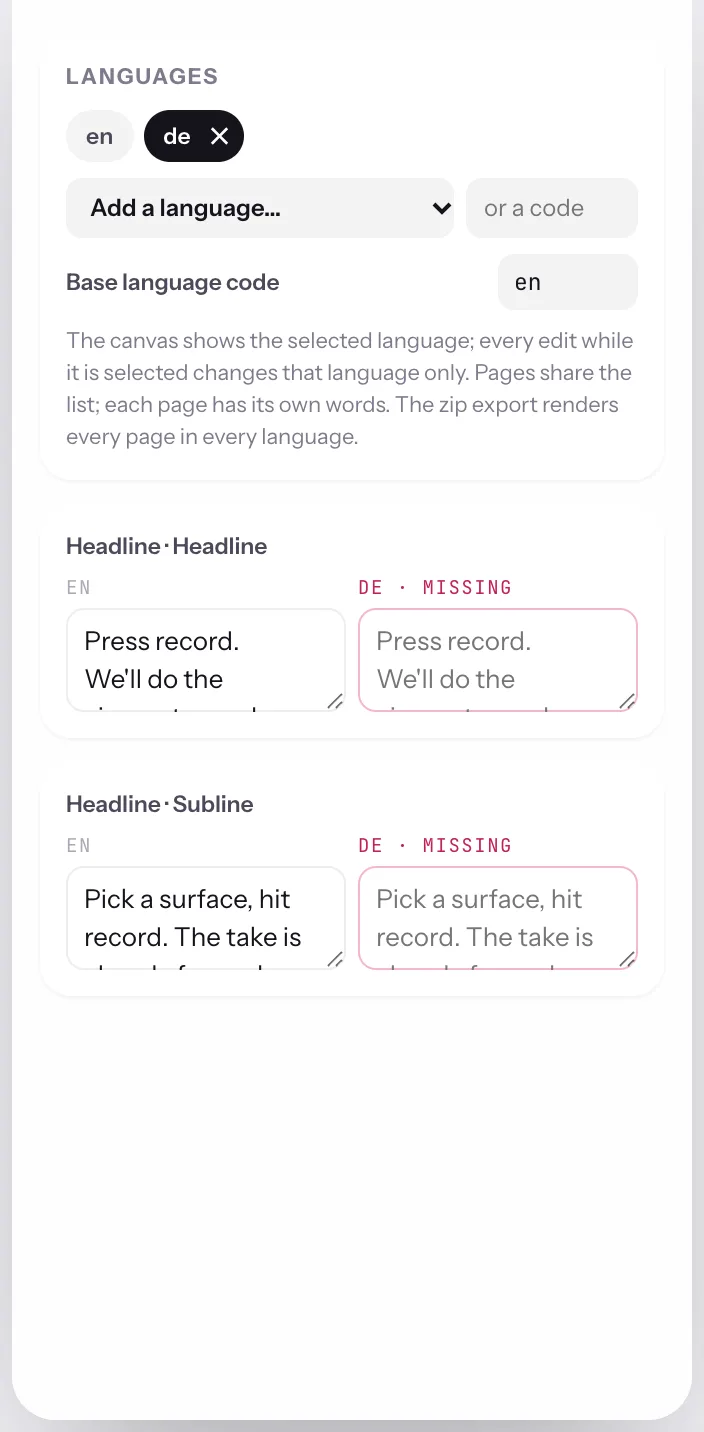
- LanguagesChips for every language in the document; the dark one is what the canvas shows.
- MISSINGNothing written yet for this language. Type into the field and the canvas updates.
- Base wordsThe language your copy was written in; the export names its folder by this code.
Step 4: Export every page in every language
Open the export menu. Pick PNG, the resolution (store pages at 1× are already the exact pixels; 2× is useful for marketing pages), then Every page. The zip holds each page at its size, numbered per store (appstore/02_iphone-6.9.png), or in Fastlane folders (metadata/android/en-US/images/phoneScreenshots/…, screenshots/en-US/…) so fastlane deliver and supply read them as they are. With languages, every page renders once per language into its own folder.
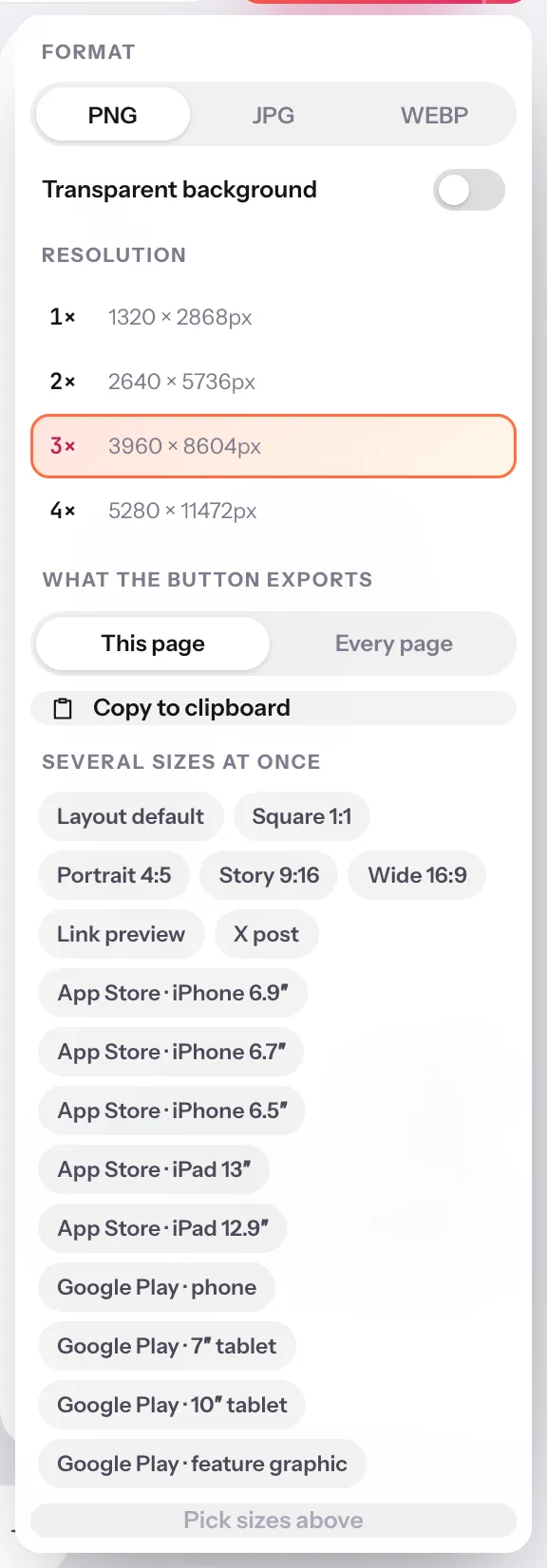
- Every pageSwitches the button from the selected page to the whole document as a zip.
- Fastlane foldersThe metadata/android and screenshots folder layout, per locale.
- Export … (.zip)Says how many pages and languages the zip will hold before you press it.
Store screenshots: quick answers
What size should App Store screenshots be in 2026?
For iPhone, 1320×2868 (the 6.9″ display) is the size App Store Connect asks for first; 1290×2796 (6.7″) and 1242×2688 (6.5″) are still accepted. iPad listings want 2064×2752 (13″) or 2048×2732 (12.9″). Google Play takes phone screenshots from 1080×1920, 7″ tablets at 1200×1920, 10″ tablets at 1920×1200, and a 1024×500 feature graphic.
How many screenshots does Google Play need for promotion?
At least four phone screenshots, each at least 1080 px on the short side, plus the feature graphic. Flicka's listing check says "eligible for promotion" the moment a set meets that.
Can I export screenshots for fastlane?
Yes. The zip export has a Fastlane folders option that writes metadata/android/<locale>/images/phoneScreenshots/… for Play and screenshots/<locale>/… for the App Store, so fastlane deliver and supply pick them up without renaming.
Are the store templates free?
The single Hero page is free, and the editor is free with two pages per document. The three-, five- and five-page launch sets, more than two pages, and extra languages are Pro.