How to add a webcam overlay to a screen recording
Most recorders burn the webcam into the video, so a bubble in the wrong corner means re-recording. Keep it as a layer and fix it in seconds instead.
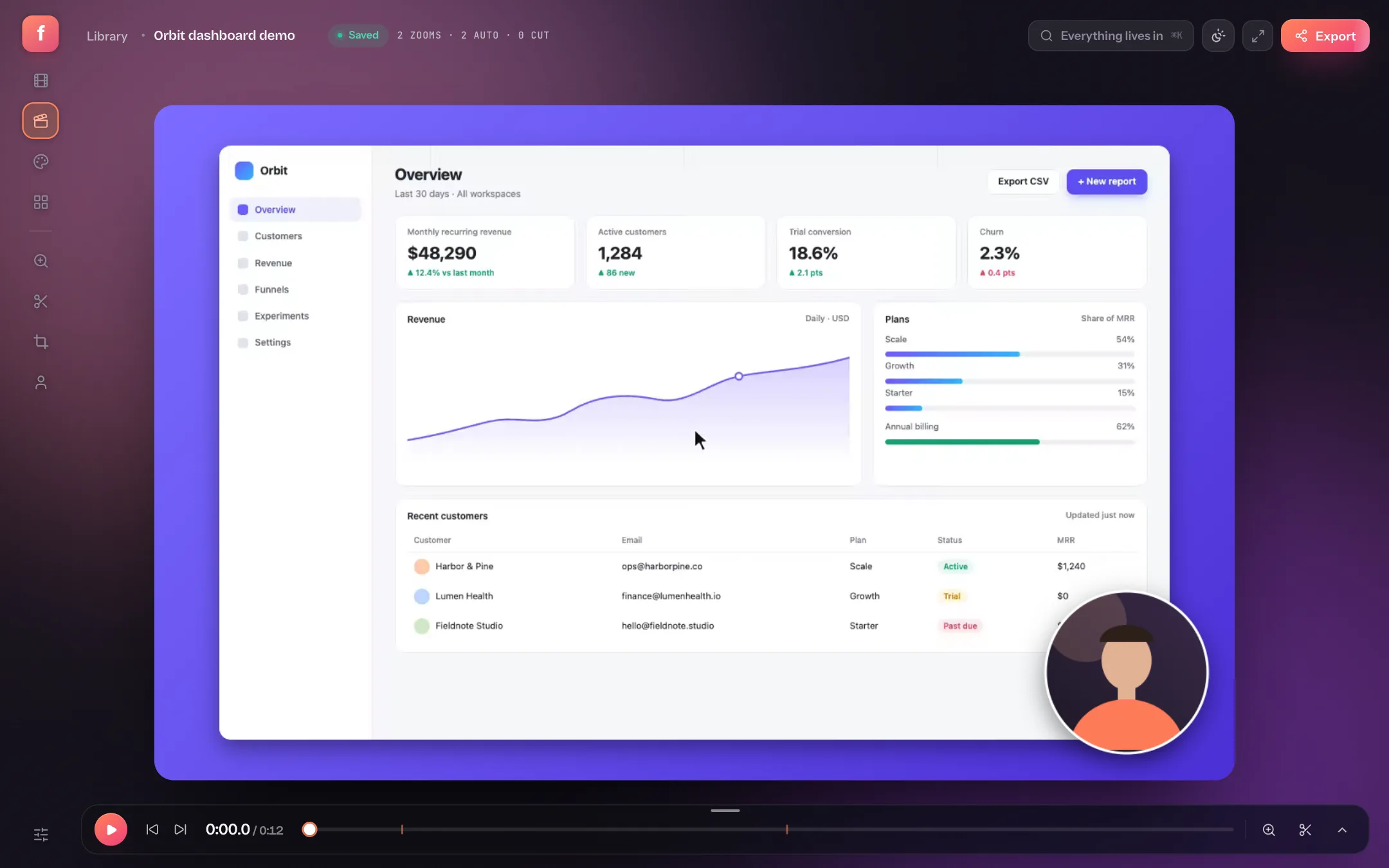
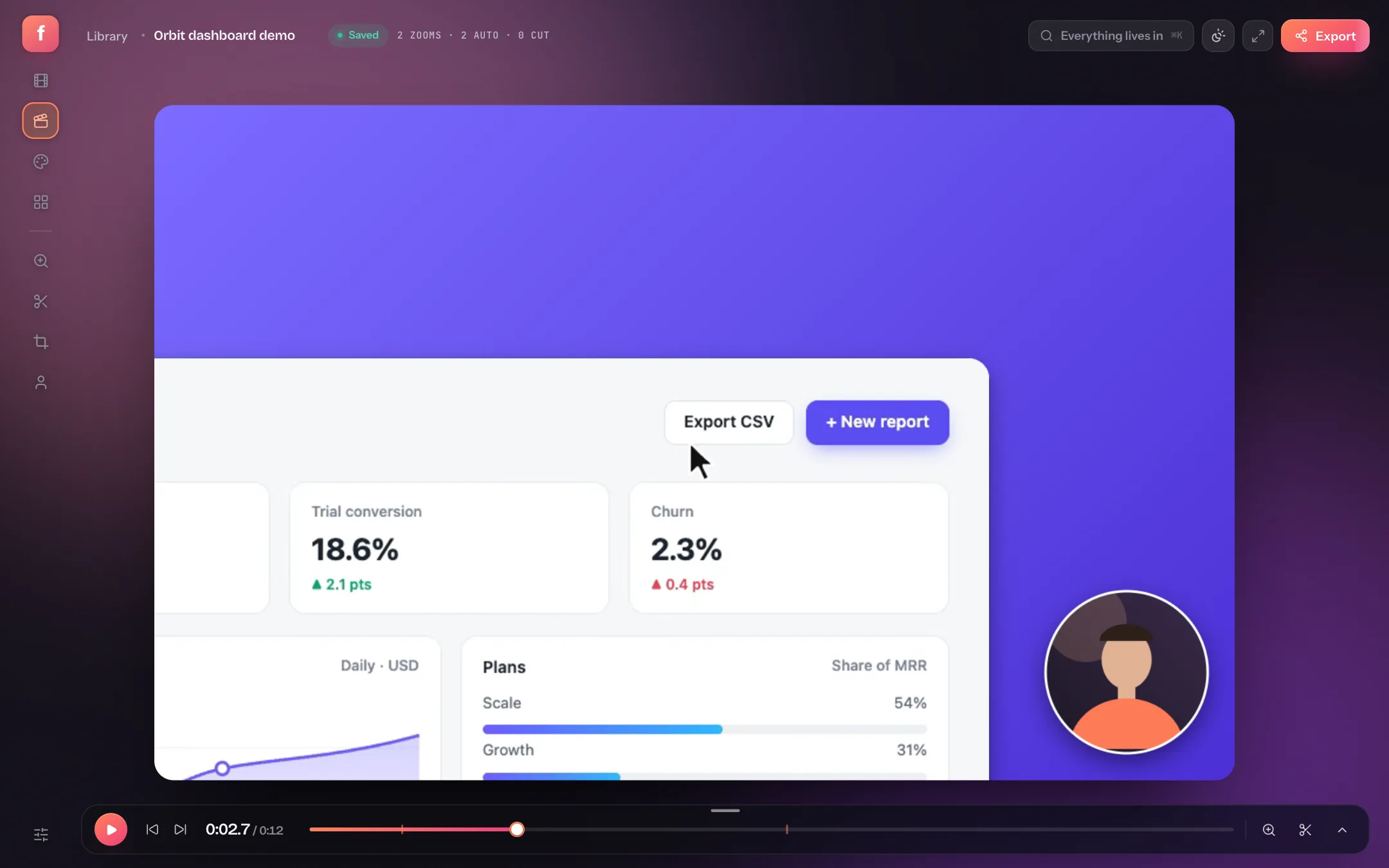
A face in the corner makes a tutorial feel like a person is walking you through it, which keeps longer videos from feeling like a silent screencast. The catch with most screen recorders is that the camera is flattened into the recording: if the bubble covers a button you needed to show, the only fix is another take.
Flicka records your webcam to its own track, next to the screen. In the editor the bubble is a layer: you can move it, resize it, or change its shape and border, long after you've stopped recording.
Step 1: Turn on the webcam before you record
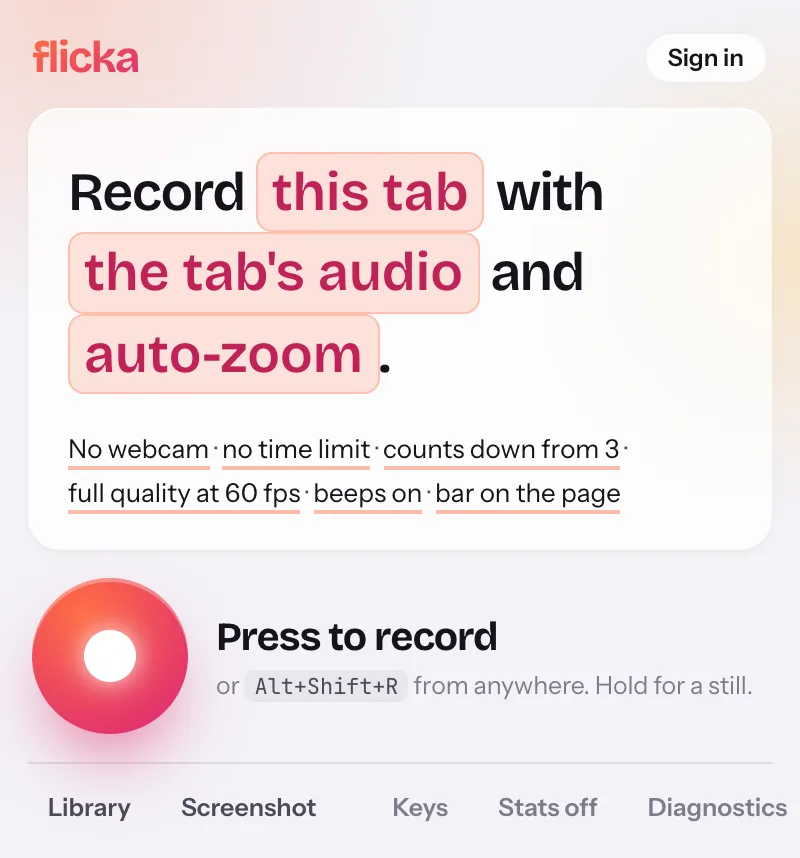
- WebcamTurn the small-print word to With your webcam; Chrome asks for camera permission the first time.
- MicUsually my mic too, so your voice matches your face.
- ShutterScreen and camera start together on the same clock, so they never drift out of sync.
While the take records, the popup shows your camera — the one place the recording doesn't film — so you can check your framing without it ending up in the video. If the camera is blocked, Flicka says so and records the screen only.
Step 2: Place the bubble on the canvas
When the recording opens, the camera appears in the bottom-right corner. To move it, pick the webcam tool in the rail and drag the bubble anywhere on the canvas.
- Webcam toolDrag the bubble to a custom position.
- Look panelShape, size, mirroring and border live in the Camera section.
Step 3: Style it in the Camera settings
Open the settings with Tab. The quickest way to reach the camera options is to type webcam in the panel's search box.
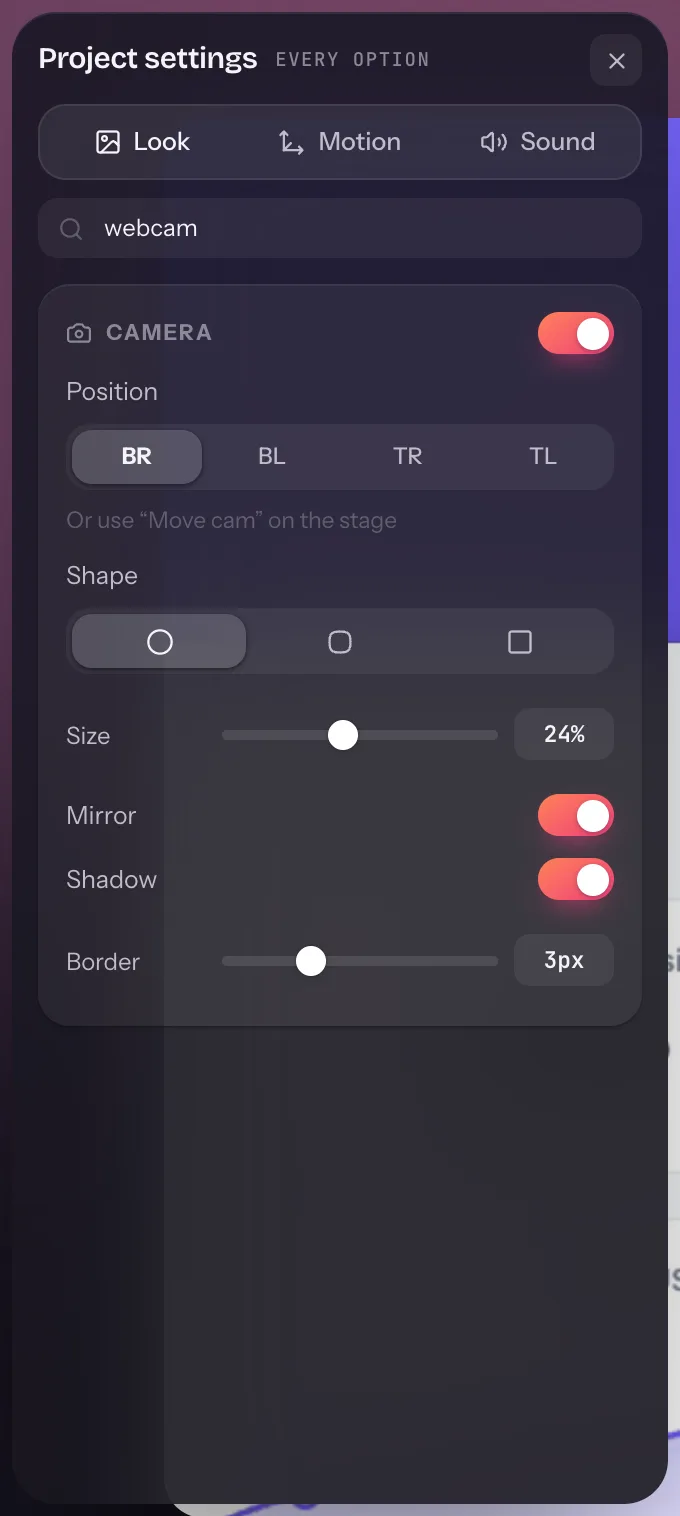
- PositionSnap to any corner, or use the webcam tool for a custom spot.
- ShapeCircle, rounded rectangle or square.
- SizeScaled to the canvas, so it stays proportional in every export size and shape.
- MirrorOn by default, which is how people expect to see themselves.
- BorderA thin ring separates the bubble from busy screens. Shadow does the same more softly.
Where to put the webcam
- Bottom-right works for most apps, because menus and primary actions cluster at the top and left.
- Top-right is better for tools with a bottom toolbar, like design apps and editors with a status bar.
- Smaller during detail. Zooms push in on the screen, but the bubble stays the same size on the canvas, so a smaller size keeps it from dominating close-ups. See how auto-zoom works.
Or make the camera a layer
The bubble has fixed shapes and corners. If you want the camera anywhere — a wide panel beside a boxed recording, a circle that slides across during the intro — press Put the camera in the layers in the Camera section. The camera becomes a layer with handles, a start, a length and animations, like a title; see text, shapes and the boxed recording. Back to the bubble undoes it.
Change the layout mid-take
The bubble is only the default. A take with a webcam gets a Layout lane on the timeline: press L at the playhead (or double-click the lane) and pick Camera for a moment that is about you, Screen to get the bubble out of the way of a dense UI, or Side by side for a walkthrough. Drag the block's edges to set when it starts and ends.
Layouts animate instead of cutting: the bubble grows into the full frame, or slides out into its own panel beside the screen, over a speed you choose — Snappy, Smooth or Slow. Two layouts that touch hand over directly, so going from your face to side by side never flashes back through the bubble.
Webcam overlays: quick answers
Can I move the webcam after recording?
Yes. The camera is its own track, so its position, size, shape, mirroring and border can all be changed in the editor at any time.
Will the webcam and screen stay in sync?
Yes. Both tracks start on the same recording clock, including across pauses.