How to add text, shapes and a boxed recording to a screen recording
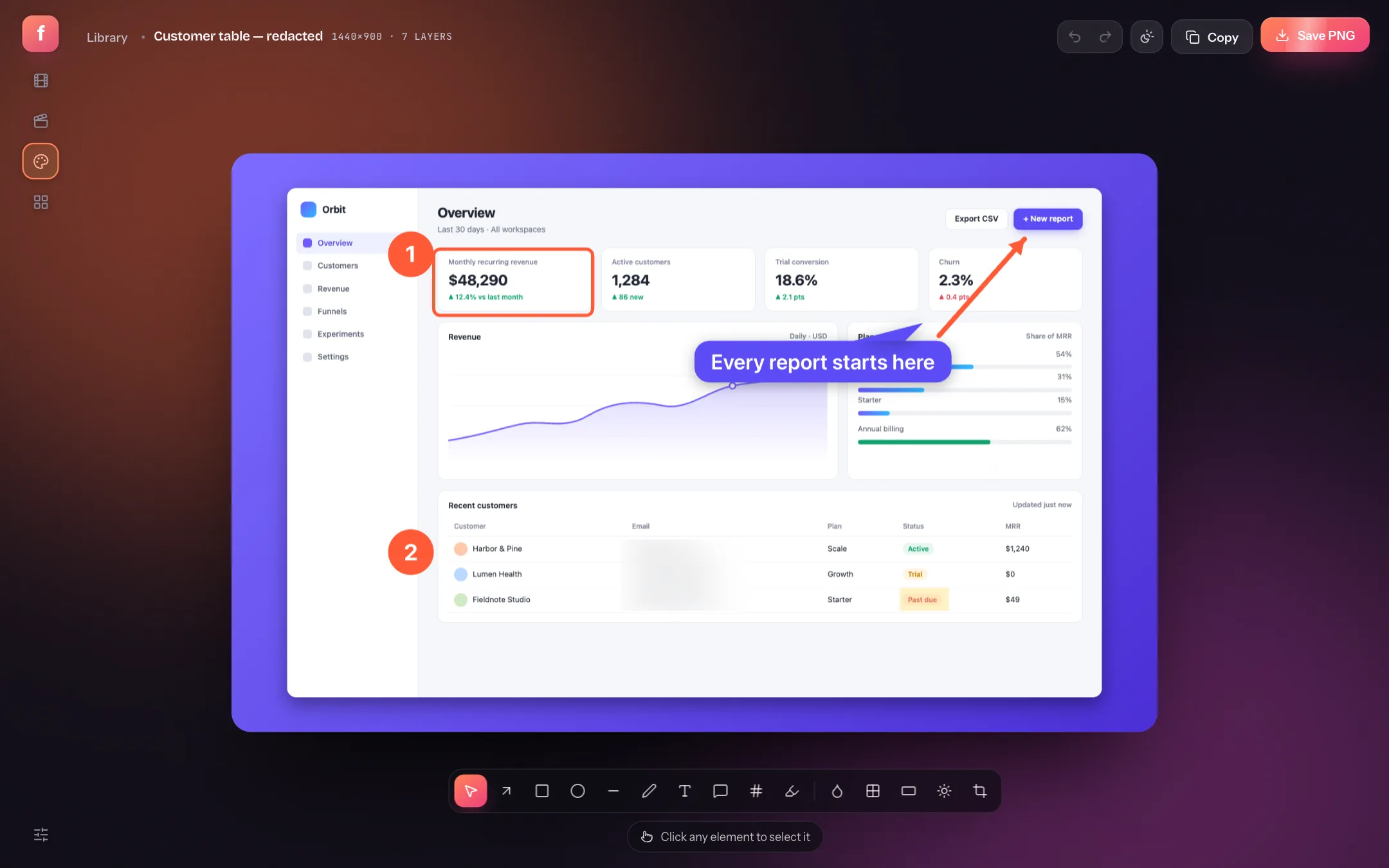
A title that appears for three seconds, an arrow that points at the thing you are clicking, the recording pushed to one side so a step sits beside it: all layers with timing, all on the canvas.
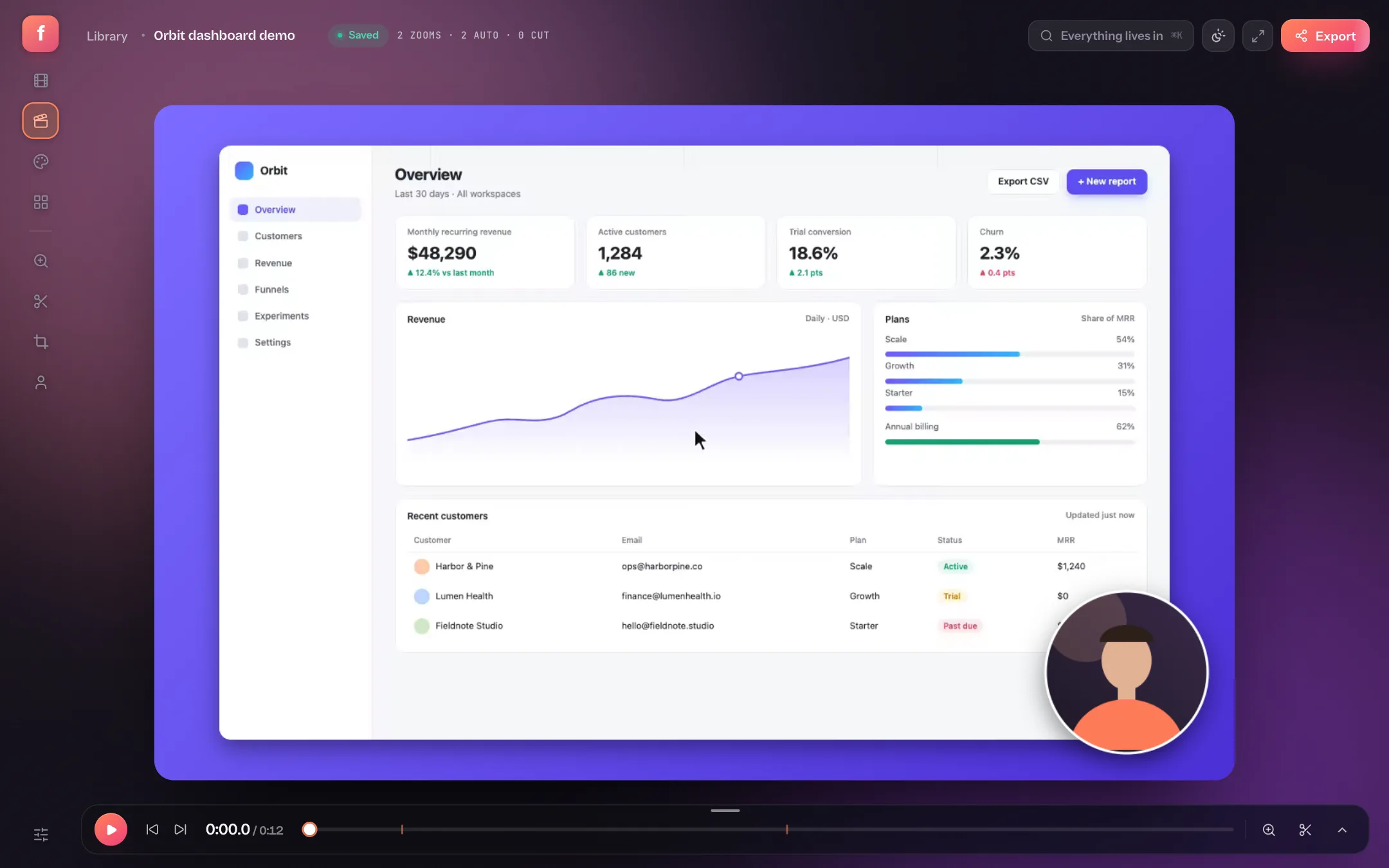
Zooms tell a viewer where to look; text tells them what they are looking at. A three-word title when a new screen appears, a label on the button you are about to press, an arrow for the thing that is easy to miss — these are the difference between a recording and an explanation. Flicka's editor does them as layers: timed, animated, drawn over the video at export size, and placed on the canvas by dragging.
This guide adds a title and a shape, times them, and then goes one step further: it puts the recording itself in a box, so a title can sit beside the screen instead of over it — the layout tutorial videos use. Everything here is on the free plan; the camera-as-a-layer and captions box at the end are Pro.
Step 1: Add a title
Move the playhead to where the text should appear and press ⇧T (or the T tool in the dock). A headline lands in the middle of the canvas, selected: drag it into place, pull its corners to resize, double-click to type. The bar under the selection changes the colour or opens the panel for the font, a plate behind the text, alignment and timing.
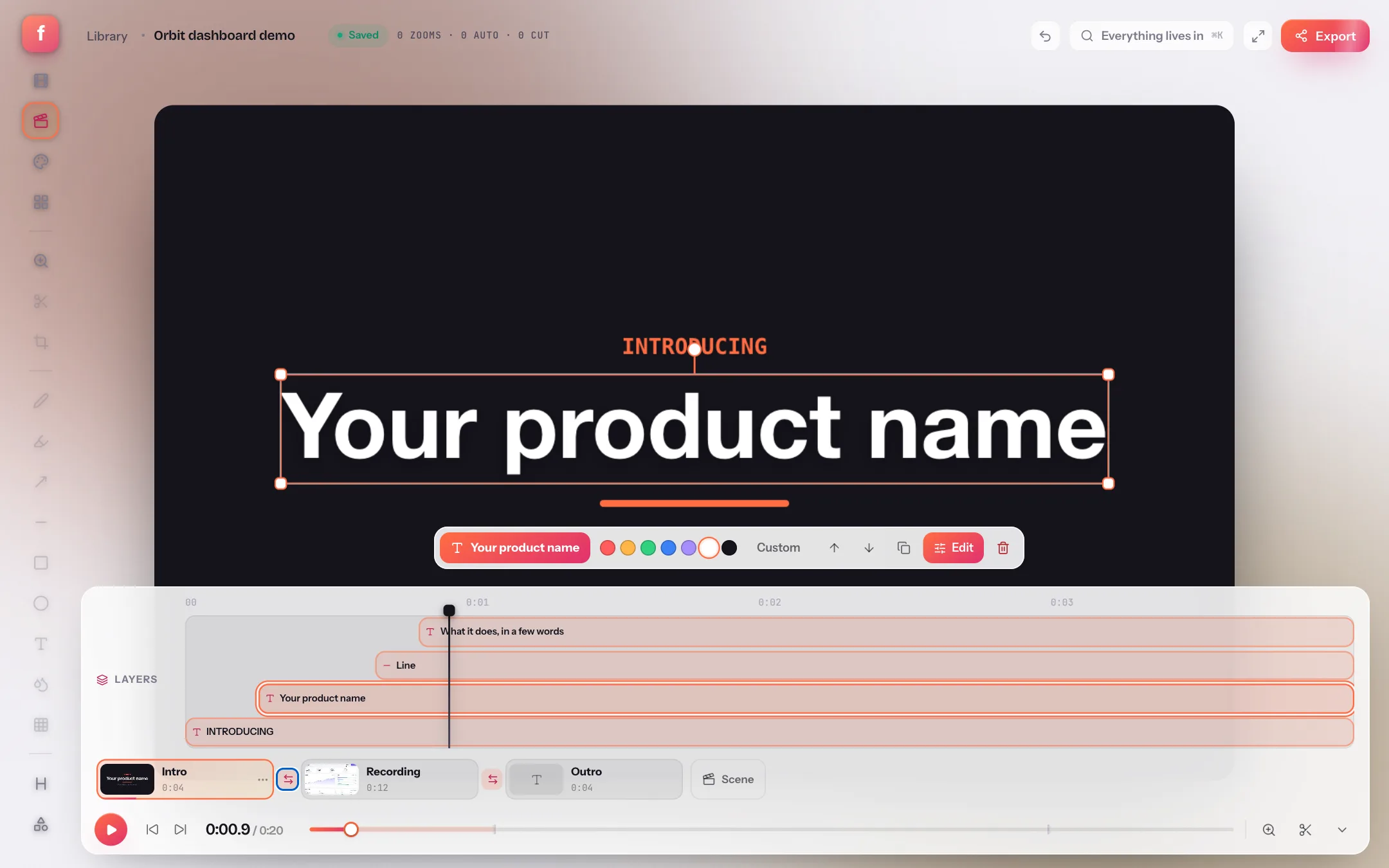
- EditText, font, weight, a plate behind the text with its padding and corners, start and length, and the enter and exit animation.
- Order] brings a layer forward, [ sends it back — a plate shape goes behind a title this way.
- Duplicate⌘D copies a layer with its timing, for the next label.
- Add a title⇧T at the playhead.
- Add a shapeBox, ellipse, arrow, line, highlight or number.
- ScenesLayers belong to a scene; a title card is nothing but layers on a backdrop.
Step 2: Time it and animate it
Each layer is a chip on the Layers lane of the timeline. Drag the chip to move it, drag its ends to change how long it stays, or type Start and Length in the panel. The animation picker gives each layer an entrance and an exit — rise, fade, scale, slide — with a length and an ease, so text arrives rather than pops. A looped animation keeps a pointer or a highlight moving while it is on screen.
| Moment | Layer | Timing |
|---|---|---|
| A new screen appears | Title, 64 px, rise in · fade out | On for 2.5–3 s, starting half a second after the cut |
| You are about to click something small | Arrow or highlight | Appears a second before the click, leaves right after |
| A step in a tutorial | Number + short label | On for the whole step; duplicate and renumber for the next |
| Who is speaking | Text with a plate (a lower third) | First 4 s of the take, bottom-left, out of the camera's way |
Step 3: Put the recording in a box
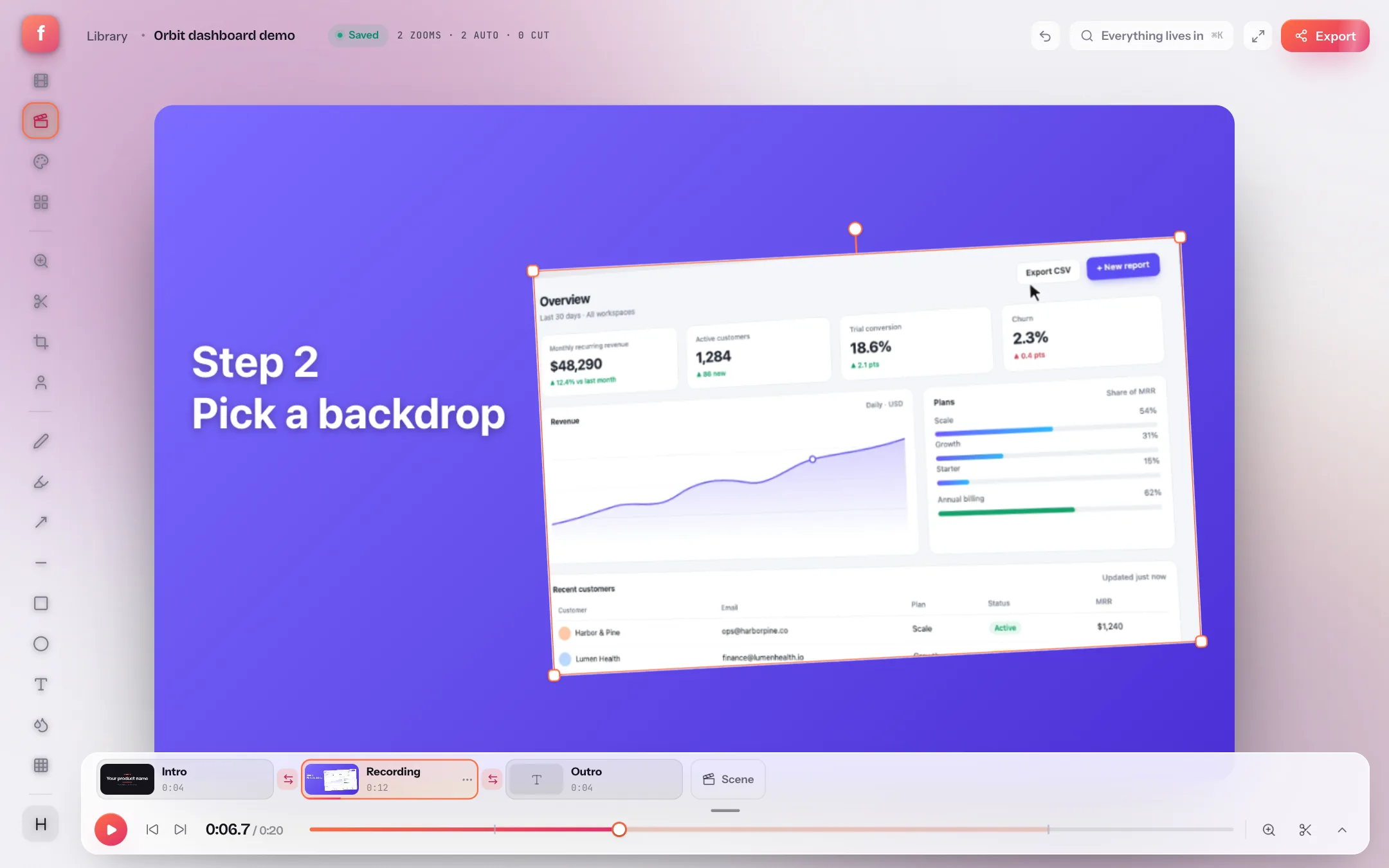
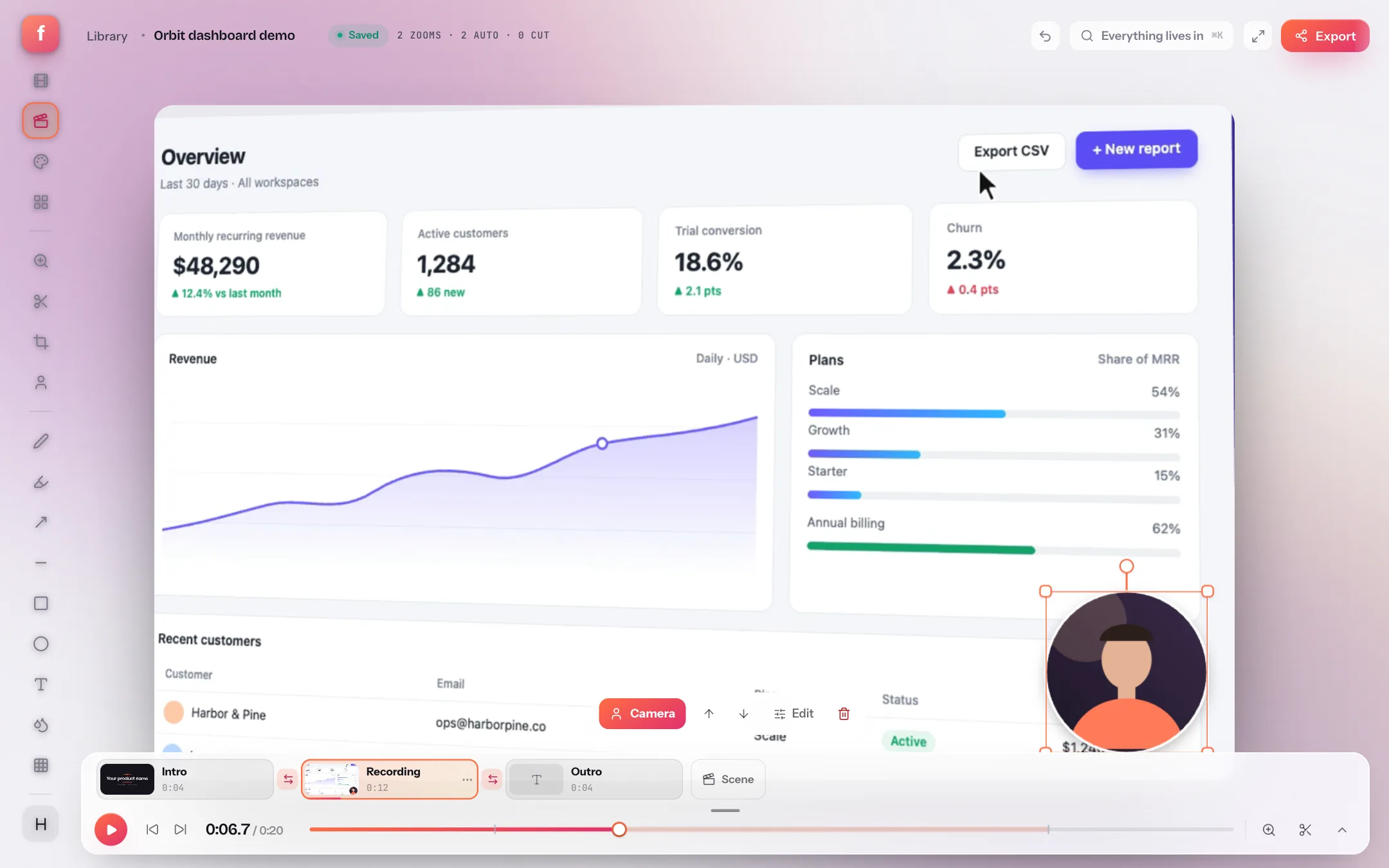
Click the recording itself on the canvas (not a layer) and it gets handles like any layer. Drag it to one side, pull a corner to make it smaller, turn it a few degrees with the stem. The box keeps the recording's zooms and clicks inside it, and the backdrop fills the rest of the canvas — room for a title, a step number, a logo. The panel's Fit puts it back, and ⌫ resets the box.
- Add a titleThe text on the left is an ordinary layer, aligned left in the panel.
- Add a shapeA box or a line under the title finishes the layout.
- Templates do this for youThe Tutorial step and Recording with name tag scene templates are boxed recordings with the titles already placed.
The camera and the captions as layers
Two more things can leave their default spots and join the layers. In the Camera section, Put the camera in the layers turns the webcam bubble into a layer you move, resize, turn and time — a circle in the corner for the intro, a wide panel beside the boxed recording for the walkthrough. In Captions, Put the captions in a box does the same for word-by-word captions, so they can sit in the backdrop under the box instead of over the picture.
- ⇧TAdd a title at the playhead
- ⌘D · ⌫Duplicate · delete the layer (⌫ on the recording resets its box)
- ] · [Bring forward · send backward
- Arrow keysNudge the selected layer or box
- Enter · EscEdit the text · deselect
Text and shapes over video: quick answers
Can I add text that appears and disappears at a certain time?
Yes. Every layer has a start and a length on the Layers lane, and an enter and exit animation. Drag the chip on the lane to retime it, or type the times in the layer's panel.
What is the difference between a drawing and a layer?
Drawings (the pen, highlighter and the annotator's tools in the Draw lane) are marks on the recording that follow its zoom. Layers sit above the picture in the canvas's own space, keep their size when the camera zooms, and can be animated.
Is the boxed recording free?
Yes. Placing, sizing and turning the recording's box, text and shape layers and their animations are on the free plan. Image layers, the camera as a layer and the captions box are Pro.
Does text stay sharp in a 4K export?
Yes. Text is drawn by the compositor at the export's size, not scaled from the preview, and its size is relative to the canvas, so a title looks the same at 1080p and 4K.