How to add smooth auto-zoom to a screen recording
A 1440p screen shrunk into a video player is unreadable. Zooming in where the action is fixes that, and you don't have to keyframe it by hand.
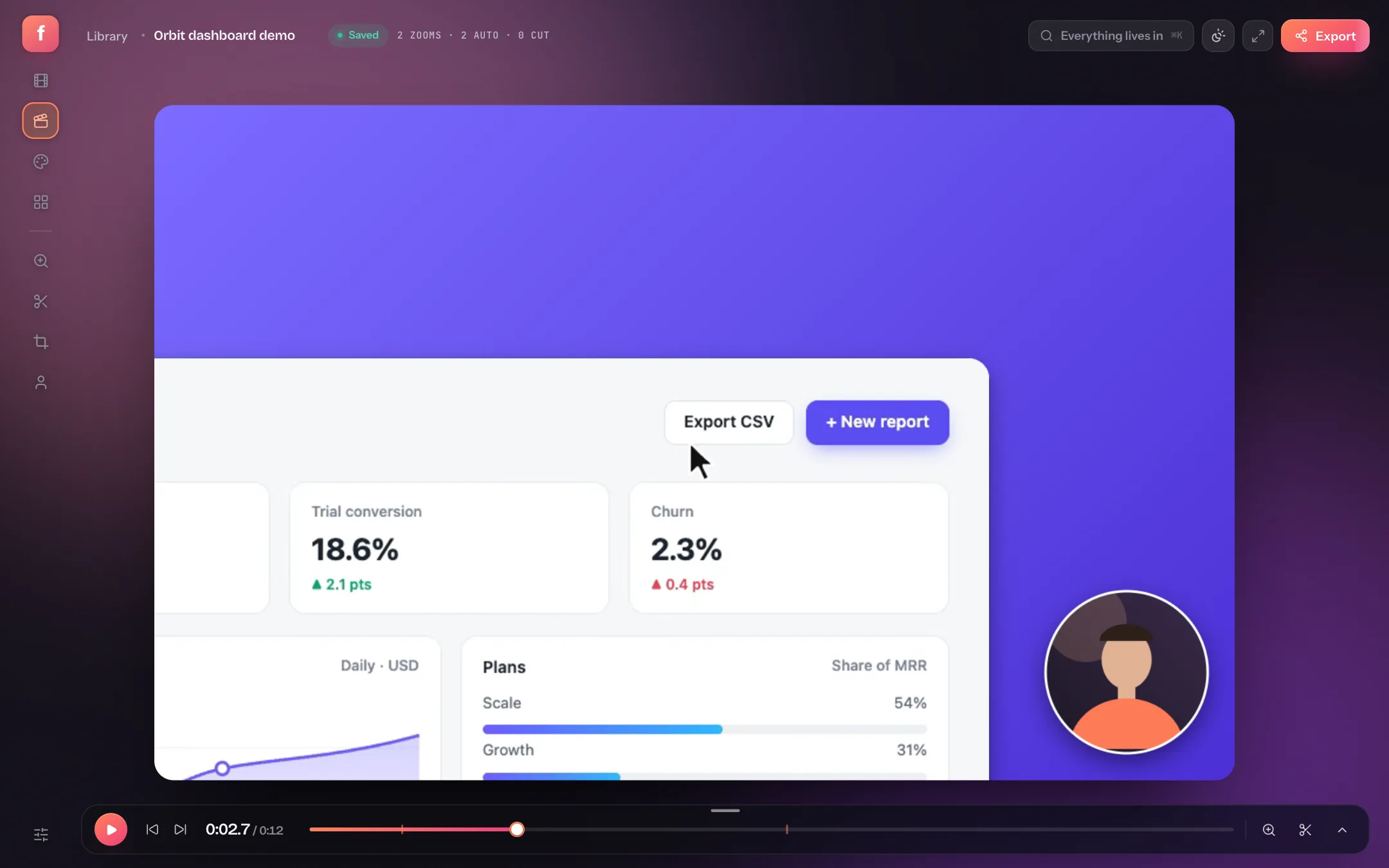
Watch a raw screen recording on a laptop and the problem is obvious: the whole desktop is squeezed into the player, text is a blur, and the viewer spends their attention hunting for the cursor. The fix used by polished product videos is simple — zoom in on whatever you're interacting with, then zoom back out.
Doing that by hand in a video editor means keyframing scale and position for every click. Flicka does it for you: it records where you click, groups the clicks into moments, and builds an eased zoom for each one that you can adjust by dragging.
How auto-zoom decides where to zoom
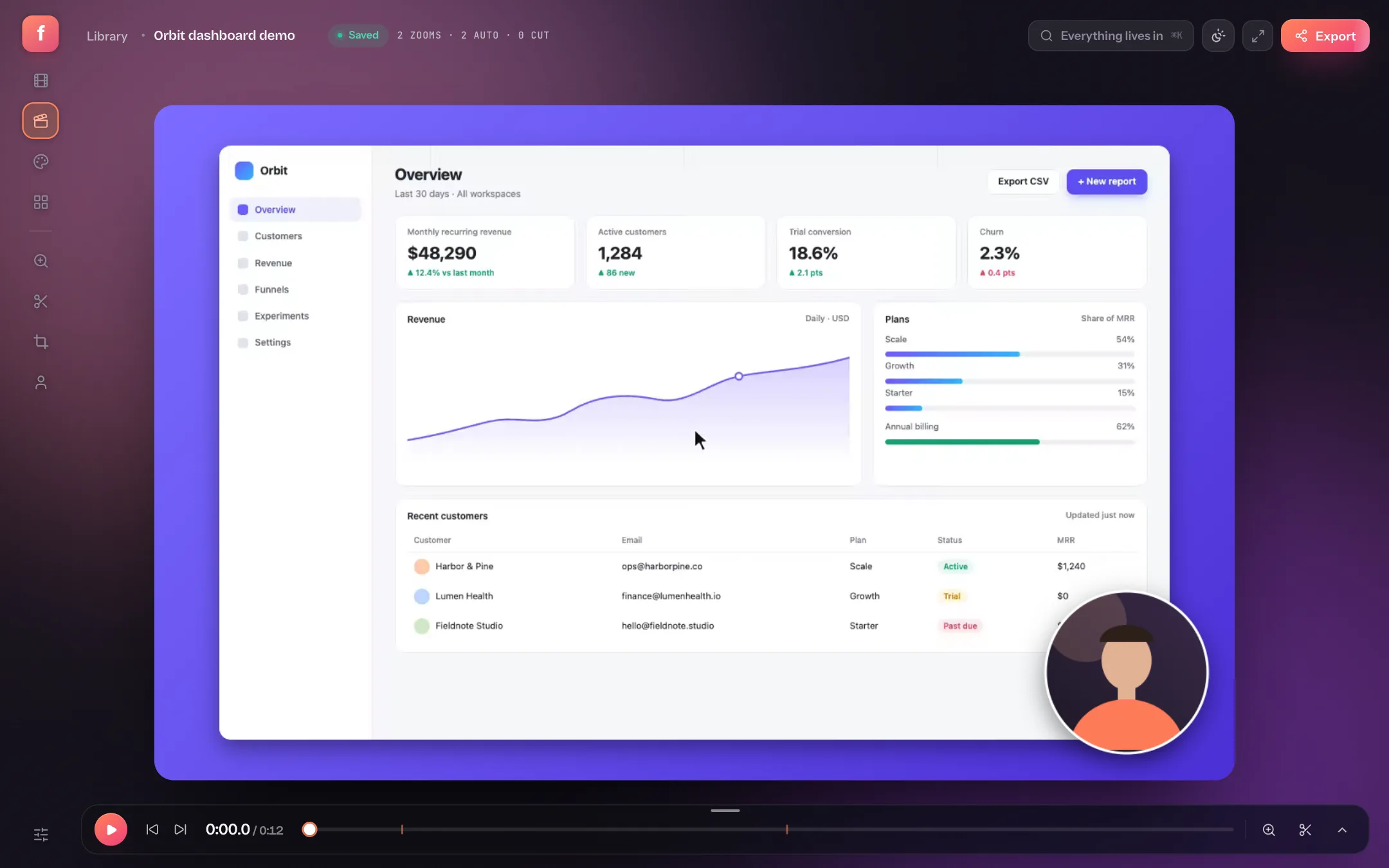
- Clicks are grouped by time. Clicks close together become one zoom that follows you between them. A pause longer than a few seconds starts a new zoom.
- Each zoom eases in and out. The camera glides to the target, holds, and returns, so the motion never feels like a jump cut.
- Zooms you add are kept. Press Z at the playhead for a moment that had no click; regenerating the automatic ones leaves yours alone.
- The cursor is smoothed. A spring simulation takes the jitter out of fast hand movements, so the zoom's camera path looks deliberate.
Step 1: Record with Auto-zoom on
Auto-zoom is the last word of the popup's sentence — Record this tab with my mic and auto‑zoom** — and it is on by default. Record a take as usual; when it opens, the header shows how many zooms were created, and how many of those are automatic.
Step 2: Review the zooms on the timeline
Expand the timeline lanes to see every zoom as a block. Select one and a toolbar appears above it.
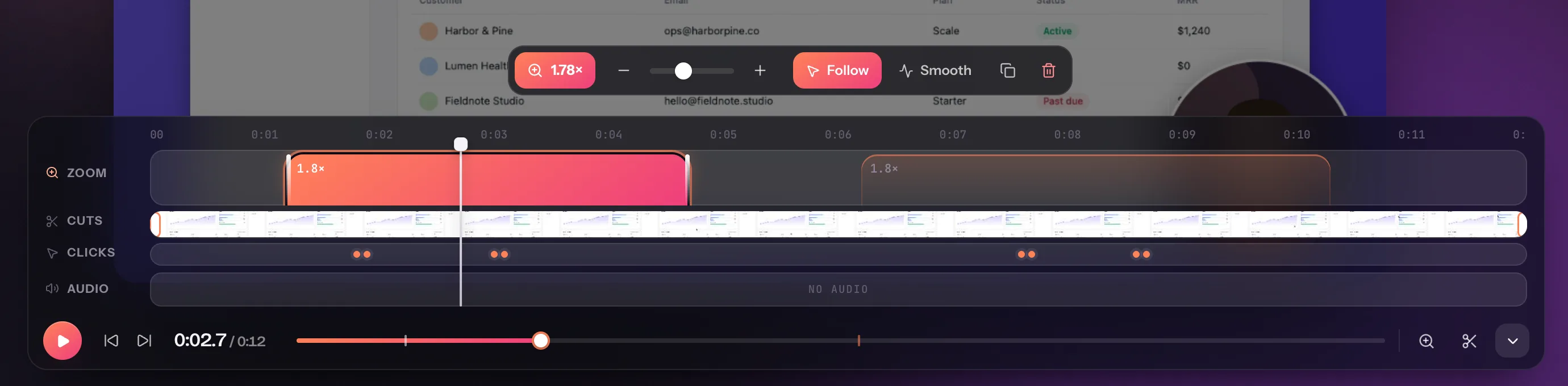
- Add a zoomDrops a new zoom at the playhead. Shortcut: Z.
- CutRemoves a span; playback and export skip it. Shortcut: C.
- Trim handlesDrag either end of the filmstrip to trim the start or finish.
- LanesExpand or collapse the zoom, cut, click and audio lanes.
The selected zoom's toolbar controls the zoom level (with the slider or − and +), Follow to keep the camera on the cursor for the whole block, Smooth to cycle the easing, plus duplicate and delete. Drag a block's edges to change when it starts and ends, or drag the block to move it.
Step 3: Aim a zoom on the canvas
With a zoom selected, choose the aim tool in the rail and drag the frame on the canvas to change what the zoom focuses on. This is the fastest way to fix a zoom that's slightly off target — you're adjusting the shot, not a pair of coordinates.
Step 4: Tune strength and sensitivity
Open the Motion panel (Tab) to change auto-zoom for the whole take.
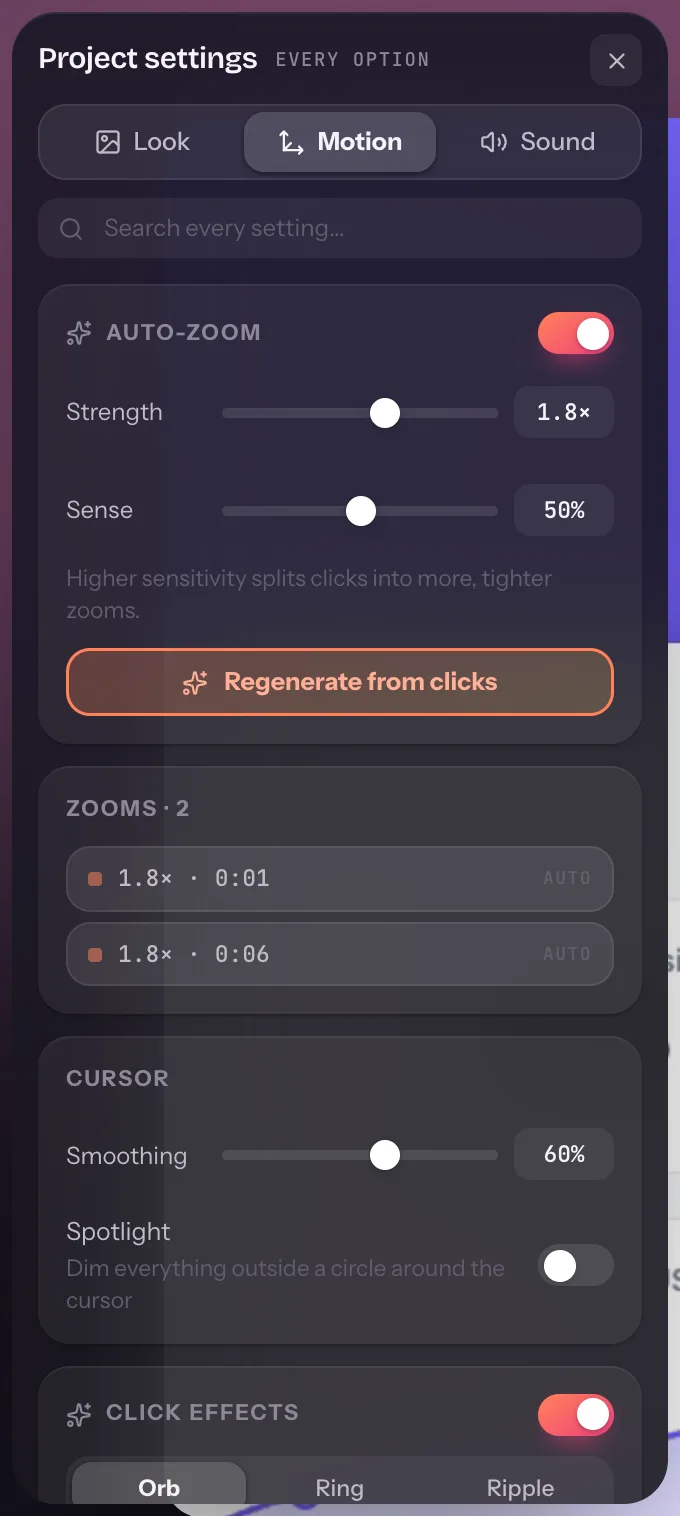
- StrengthHow far auto-zooms push in. Around 1.6–2× suits most screens; go higher for dense UIs.
- SenseHigher sensitivity splits clicks into more, tighter zooms. Lower merges them into fewer, longer ones.
- Regenerate from clicksRebuilds the automatic zooms with the new settings. Zooms you placed by hand are kept.
- Cursor smoothingHow much the spring evens out the pointer path.
- SpotlightDims everything outside a circle around the cursor, for moments that need even more focus.
Click effects that show what happened
A zoom tells viewers where to look; a click effect tells them something happened. In the same panel, Click effects adds an orb, ring or ripple at each click, with adjustable size and strength. Pair them with synthesized click sounds from the Sound panel if the video will be watched with audio on.
Auto-zoom: quick answers
Can I zoom in on a screen recording after recording it?
Yes. Every zoom is an editable block on the timeline. Add one at the playhead with Z, drag it to the right moment, and aim it on the canvas.
Why didn't auto-zoom create any zooms?
Auto-zoom uses the clicks Flicka recorded on Chrome pages. If you worked in another application, there's nothing to build from — add zooms by hand with Z at the playhead.
Do the zooms lower video quality?
A zoom enlarges part of the recording, so record at your screen's native resolution and prefer Browser tab or Window sources for the sharpest close-ups.
Is auto-zoom free?
Yes. Auto-zoom, manual zooms and trims are on the free plan. Pro adds cuts, click sounds, the webcam layer and MP4 export.