Scene templates: designed intro, chapter and outro cards for demo videos
A demo video needs the same cards every time: a title, a chapter break, a quote, a thank-you. Scene templates are those cards, designed once and refitted to your canvas, with every layer still editable.
Every demo video uses the same handful of cards: a title in front, a chapter break between parts, a customer quote or a big number for proof, a thank-you with a link at the end. Designing them per video is the part everyone skips, which is why so many demos start on a half-loaded page. Flicka's scene templates are those cards designed once, refitted to your canvas, and applied as ordinary scenes and layers you can still edit.
This guide tours the fourteen built-ins, applies one, and shows how to save your own template from any scene so the next video starts where this one finished. Templates live in the Templates workspace next to the content templates for code, tweets and testimonials.
The fourteen built-ins
| Template | Kind | What it is |
|---|---|---|
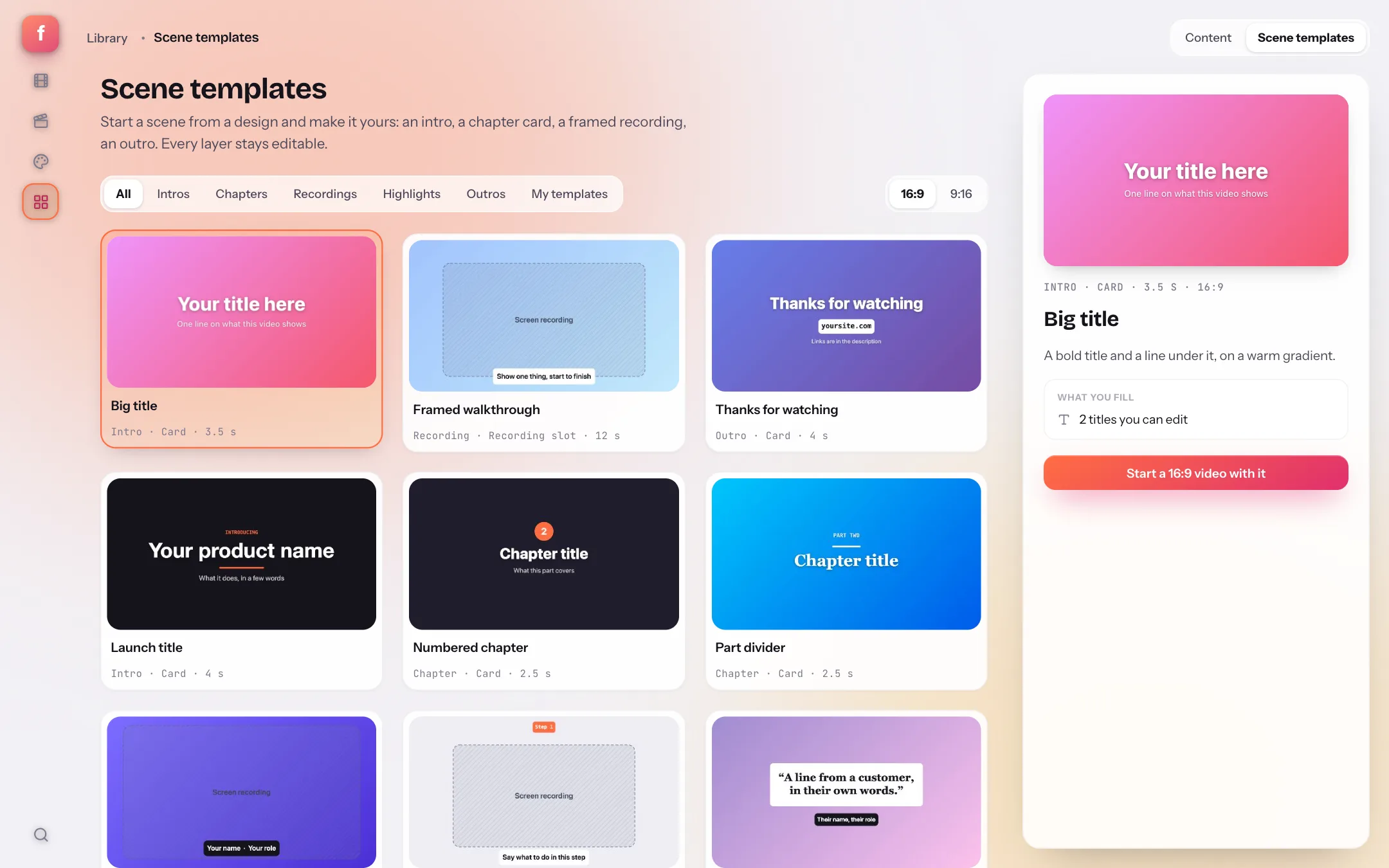
| Big title | Intro · free | A bold title and a line under it, on a warm gradient |
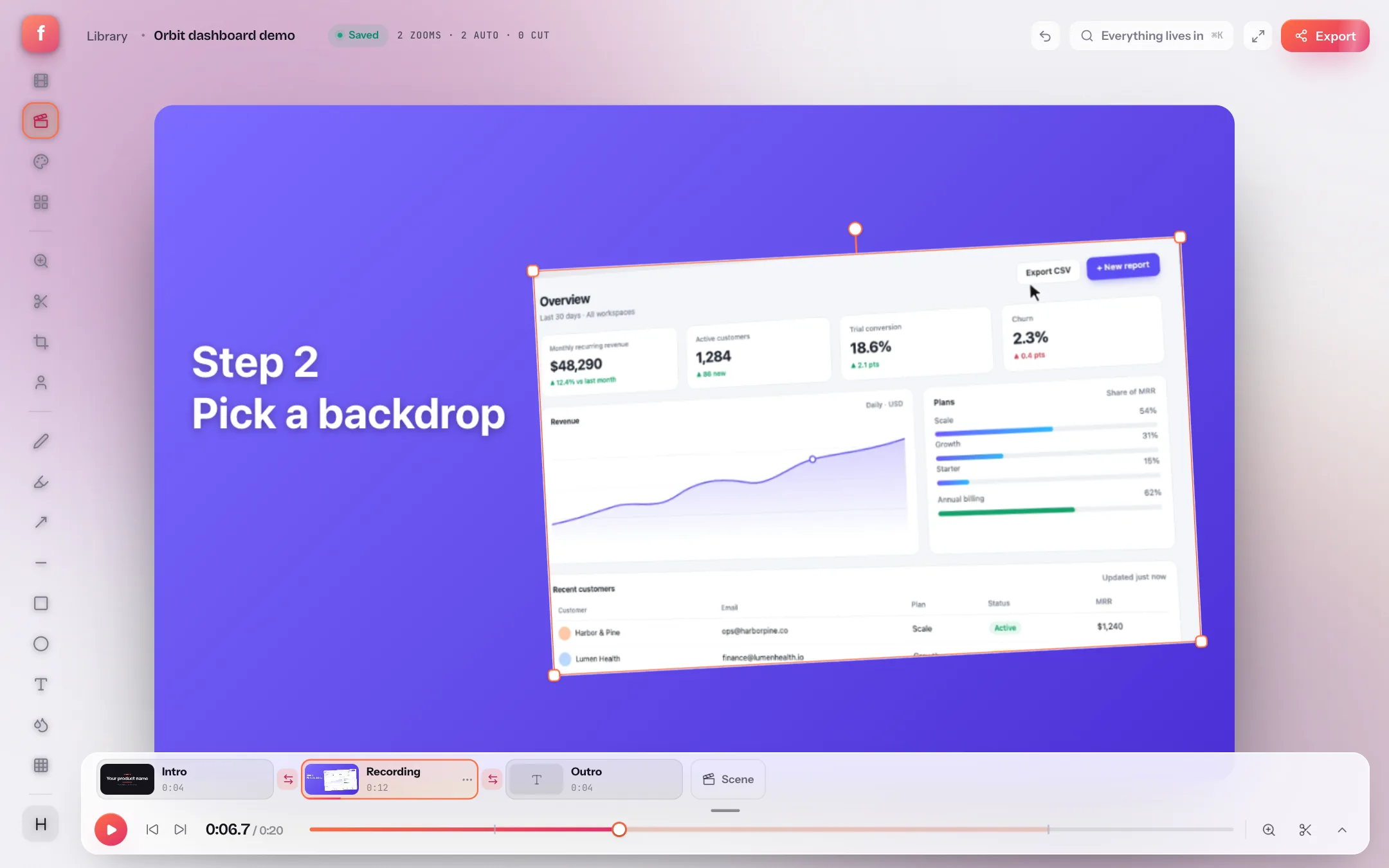
| Framed walkthrough | Recording · free | Your recording in a browser window on a soft gradient, with a caption |
| Thanks for watching | Outro · free | A thank-you, your site and where the links are |
| Launch title | Intro | An announcement: a kicker, the name and what it does |
| Numbered chapter | Chapter | A chapter number, its title and what it covers |
| Part divider | Chapter | A quiet break between parts, in a serif title |
| Recording with name tag | Recording | Your recording on a gradient, with a name and role tag |
| Tutorial step | Recording | A step number above your recording and the instruction under it |
| Customer quote | Highlight | A quote on a card, with who said it |
| Big number | Highlight | One figure, large, and what it means |
| Three steps | Highlight | How it works, in three numbered steps |
| Before and after | Highlight | Two images side by side, labelled — you choose the images after you add it |
| See you next time | Outro | A big goodbye and your handle |
| Logo sign-off | Outro | Your logo and your site on white — you choose the logo after you add it |
Sample text in every template says what to write there — Your product name, Chapter title — rather than inventing a company or a quote, so nothing slips into an export by accident. Built-ins use only free look ingredients, so a template previews on the free plan exactly as it renders once bought.
Step 1: Browse the gallery
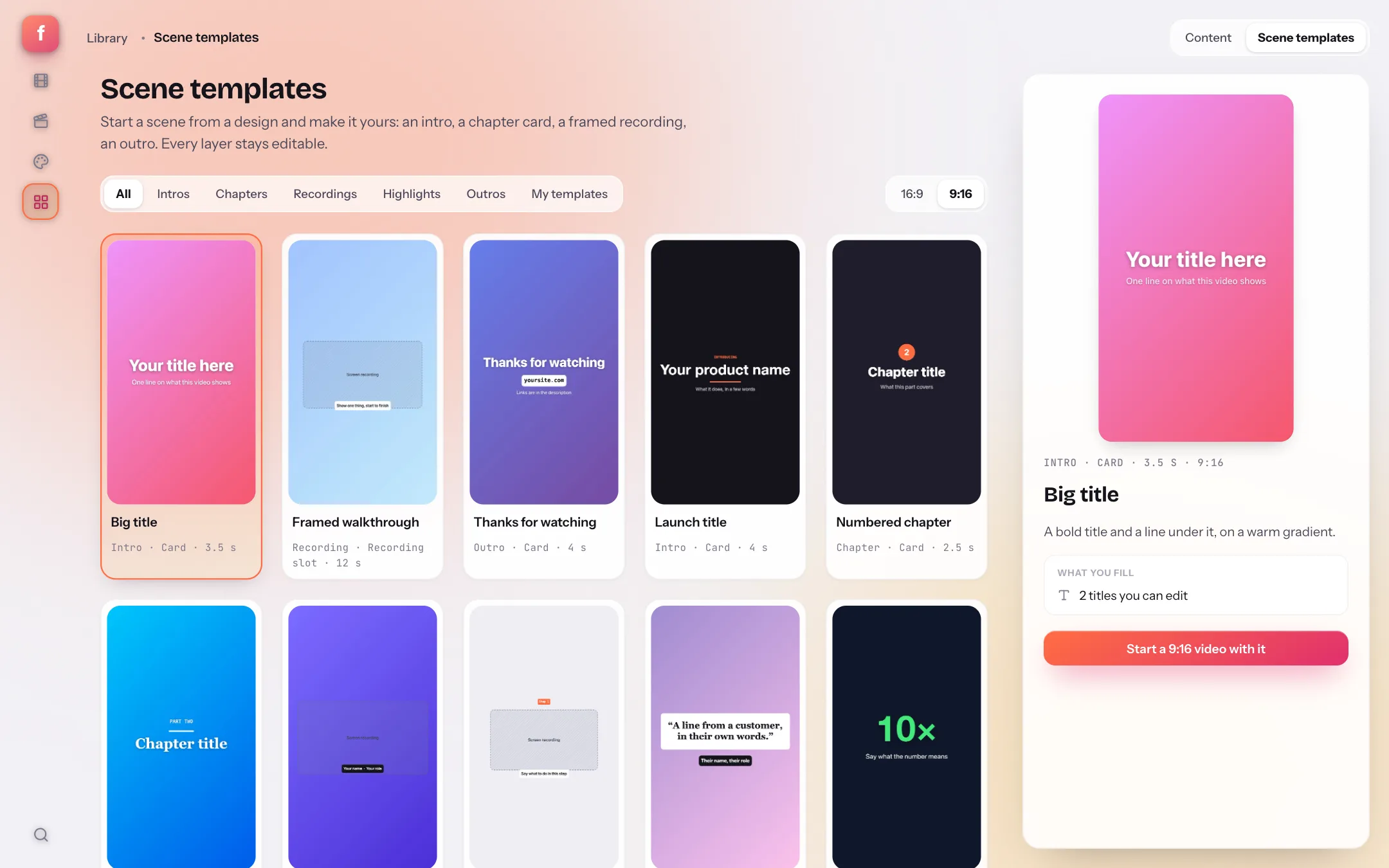
Open Templates in the rail and switch to the Scene templates tab. Filter by kind, flip the preview between 16:9 and 9:16 (or your open project's canvas), and hover a card to watch it play. The panel on the right previews the selected template and lists what you fill in.
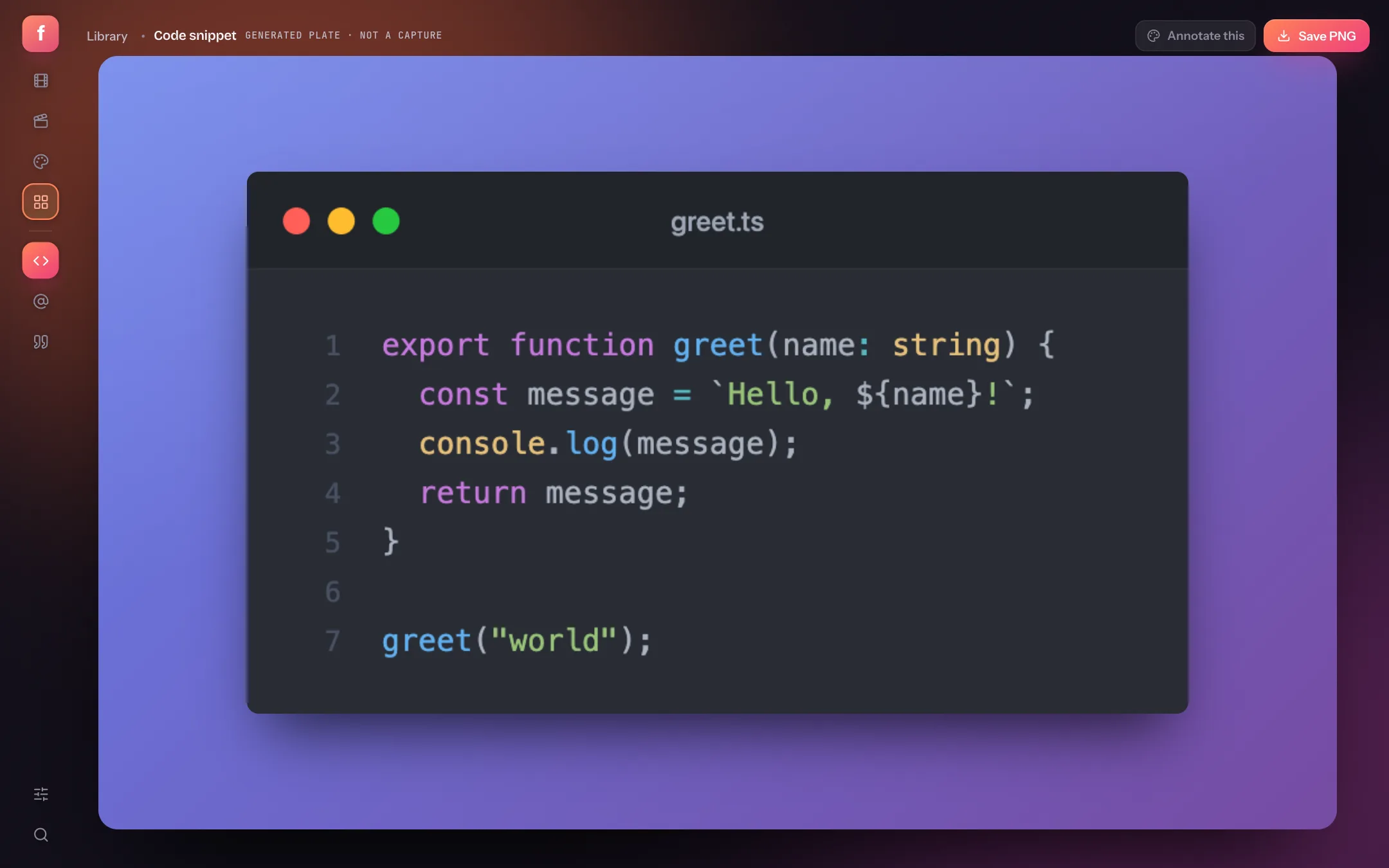
- Scene templatesThe second tab of Templates; the first holds the code, tweet and testimonial plates.
- 16:9 · 9:16Previews refit to either shape — the same refit happens when a template lands in a project.
- A free starterBig title, Framed walkthrough and Thanks for watching are free. The rest carry a Pro tag on the free plan: everything previews, applying them is Pro.
- PreviewPlays the template, lists what you fill, and starts a new project from it at the shape you chose.
- Import a template fileA .flicka-scene.zip from another machine lands under Mine.
Step 2: Apply a template in the editor
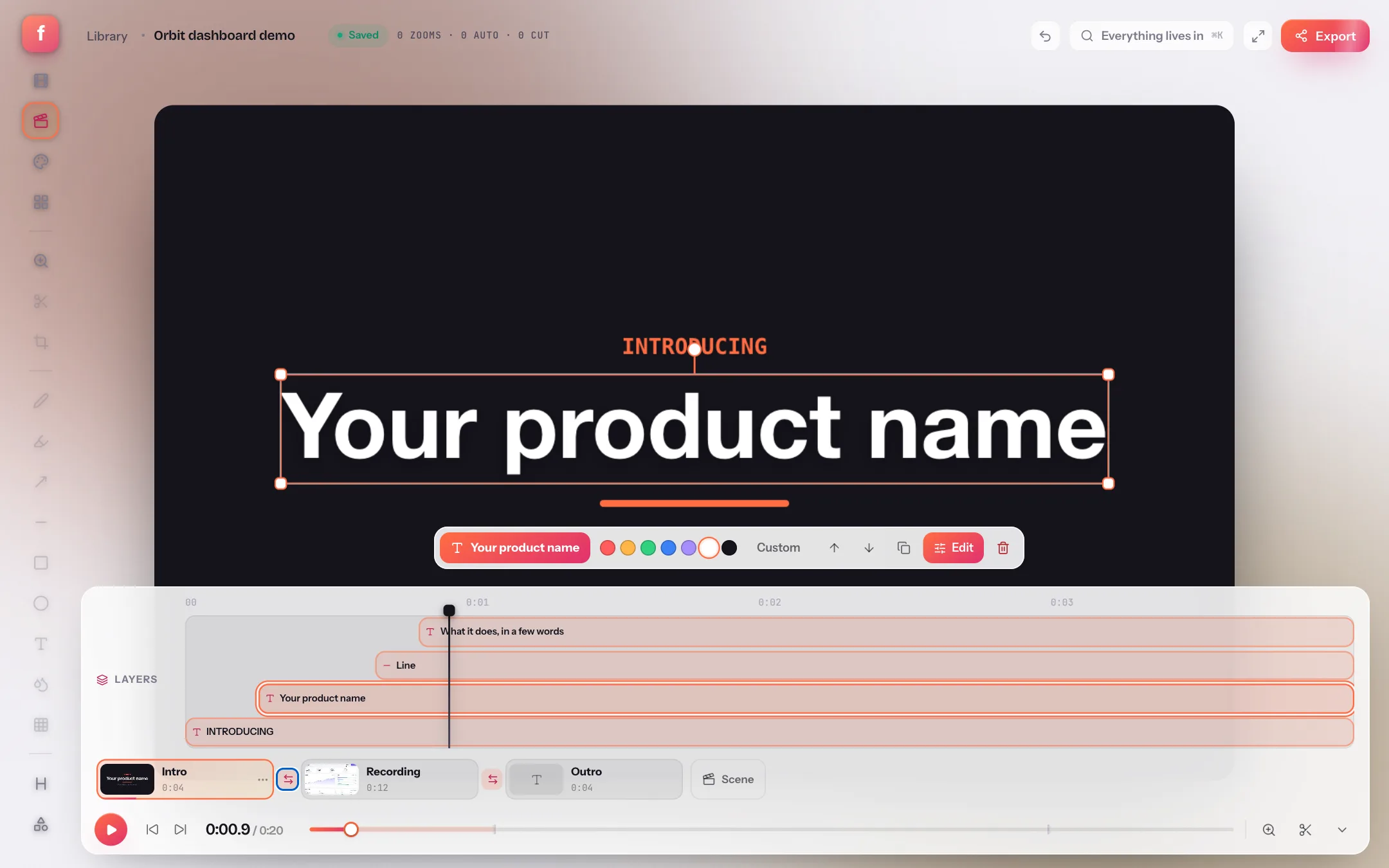
In a project, press + Scene on the scene strip and choose From a template…. The picker opens over the editor with the same grid. Choose Insert to add the template as a new scene after the active one, or Replace to give the active scene the template's look and layers. Replacing a recording keeps the recording: it takes the template's backdrop, frame, titles and, for a recording template, the box the picture sits in.
Recording templates are empty slots: the canvas shows a hatched box where the take goes, and the scene's menu offers Add your recording… — record into it, pick a take from the library or drop in a video file. The look and the titles stay; only the slot is filled. The intro and outro guide covers what happens next on the strip.
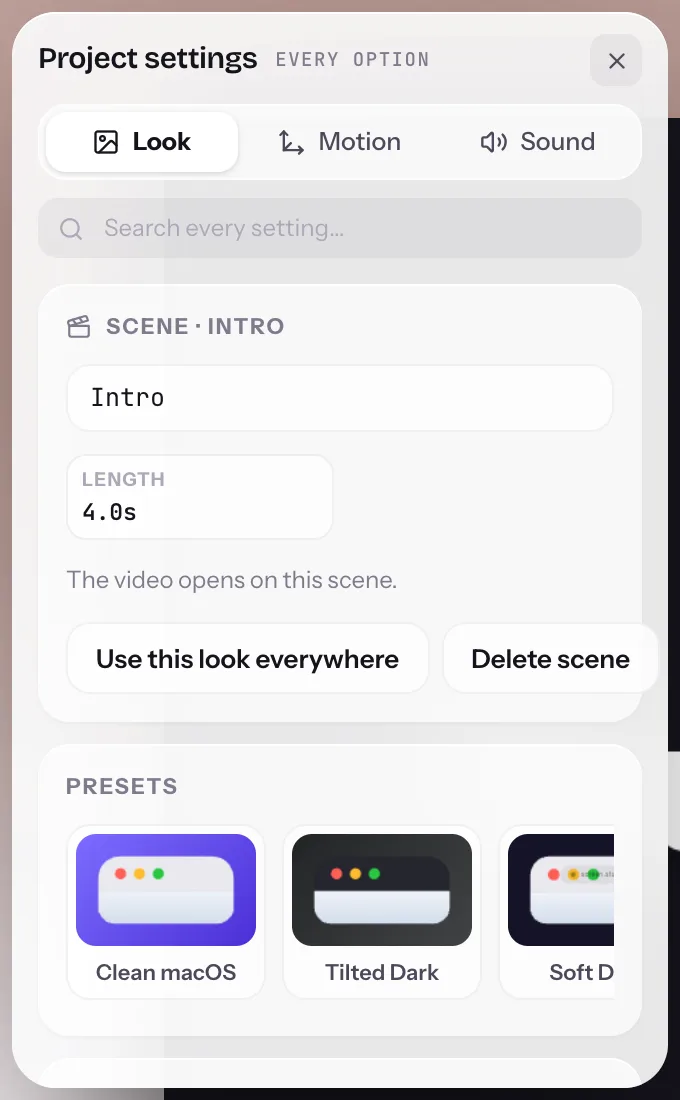
- Scene nameShows on the chip and in the music's Starts with list.
- LengthA card holds for this long; a recording's length is its edited span.
- Scene templatesApply a template to this scene from the panel, or save this scene as one.
- LayersEvery text, shape and image layer on the scene, in order, with timing.
Step 3: Save your own
Make a card once — your brand colours, your logo as an image layer, your sign-off — and choose Save as template from the scene's menu. Name it, pick a category, and it appears under Mine in the gallery and in every picker, for every project, with a thumbnail rendered from the scene. Images you placed are kept in the template; a recording never is. Export the template from its menu to move it between machines or hand it to a teammate.
Scene templates: quick answers
Are scene templates free?
Three starters are free — Big title, Framed walkthrough and Thanks for watching. The other eleven built-ins, saving your own scenes as templates and importing template files are Pro. Templates you saved yourself are never gated.
Do templates work on vertical video?
Yes. Built-ins are designed at 16:9 and refitted to the project's canvas when applied; the gallery previews them at 16:9 or 9:16. Text boxes refit and cards grow to use the width of a taller canvas.
Can I share a template with a teammate?
Export it as a .flicka-scene.zip from its menu and import the file on the other machine. The file holds the look, the layers and any kept images — never a recording.
What does a template keep when I apply it to a recording?
The look (backdrop, frame, padding, shadow), the text and shape layers with their timing and animation, image slots, the length for a card, an optional transition, and for a recording template the box the recording sits in. Your take's own clicks, zooms, camera and captions stay as they were.