How to add an intro, an outro and transitions to a screen recording
A raw take starts mid-click and ends when you reached for the stop button. A title card, an outro and a fade between them make the same footage read as a finished video. Here is the scene strip that does it.
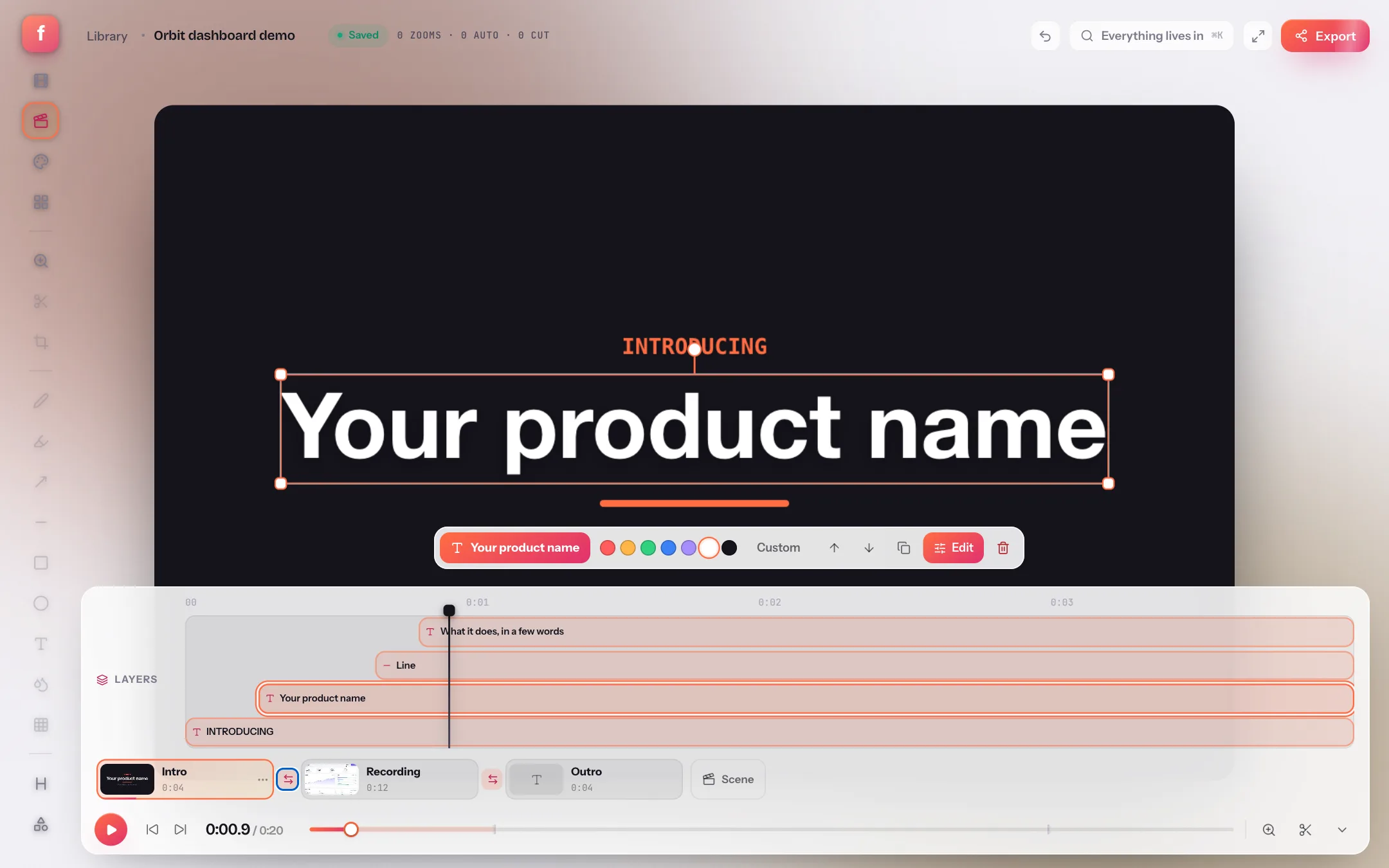
The difference between a screen recording and a demo video is mostly what happens in the first and last three seconds. A take that opens on a half-loaded page and ends on the stop button is a recording; the same take with a title in front, a thank-you after and a fade between them is a video. Flicka's editor now has a scene strip under the timeline for exactly this, and a scene template library to start the cards from.
This guide adds an intro and an outro to a take, puts a transition at each seam, and shows where another recording would go. Everything runs in the extension on your device, like the auto-zoom and the rest of the editor.

- A title cardA scene with no recording: a backdrop and layers. Its length is whatever you set.
- A seamClick to choose how the next scene arrives — cut, fade, dissolve, slide, wipe or zoom — and how long it takes.
- The recordingYour take, with its zooms, cuts and drawings on its own clock. Click a chip to edit that scene.
- LengthThe scene's edited length; the project's total is in the player.
- Scene optionsRename, duplicate, move earlier or later, use this look everywhere, save as a template, delete.
- Add a sceneA title card, a scene from a template, a new take recorded into the project, a recording from the library, a video file, or a copy.
Step 1: Put a title card in front
Open a take and press + Scene at the end of the strip. Title card adds a card after the active scene with one headline layer, wearing the take's backdrop; drag the chip to the front, or pick From a template… and start from a designed intro instead. Double-click the headline on the canvas to type, press ⇧T for another line of text, and drag the layers where you want them.
- The stripThe Intro chip is active, so the canvas, timeline and panel all show the card.
- Text, timing and animationOpens the layer in the panel: text, font, colour, a plate behind it, when it starts and ends, and its enter and exit animation.
- OrderBring the layer forward or send it back — ] and [ do the same.
- Duplicate⌘D copies the layer with its timing.
- Add a title⇧T drops a headline in the middle of the canvas, selected.
- Add a shapeA box, ellipse, arrow, line, highlight or number — the same tools as the annotator, as timed layers.
Step 2: Add an outro after the take
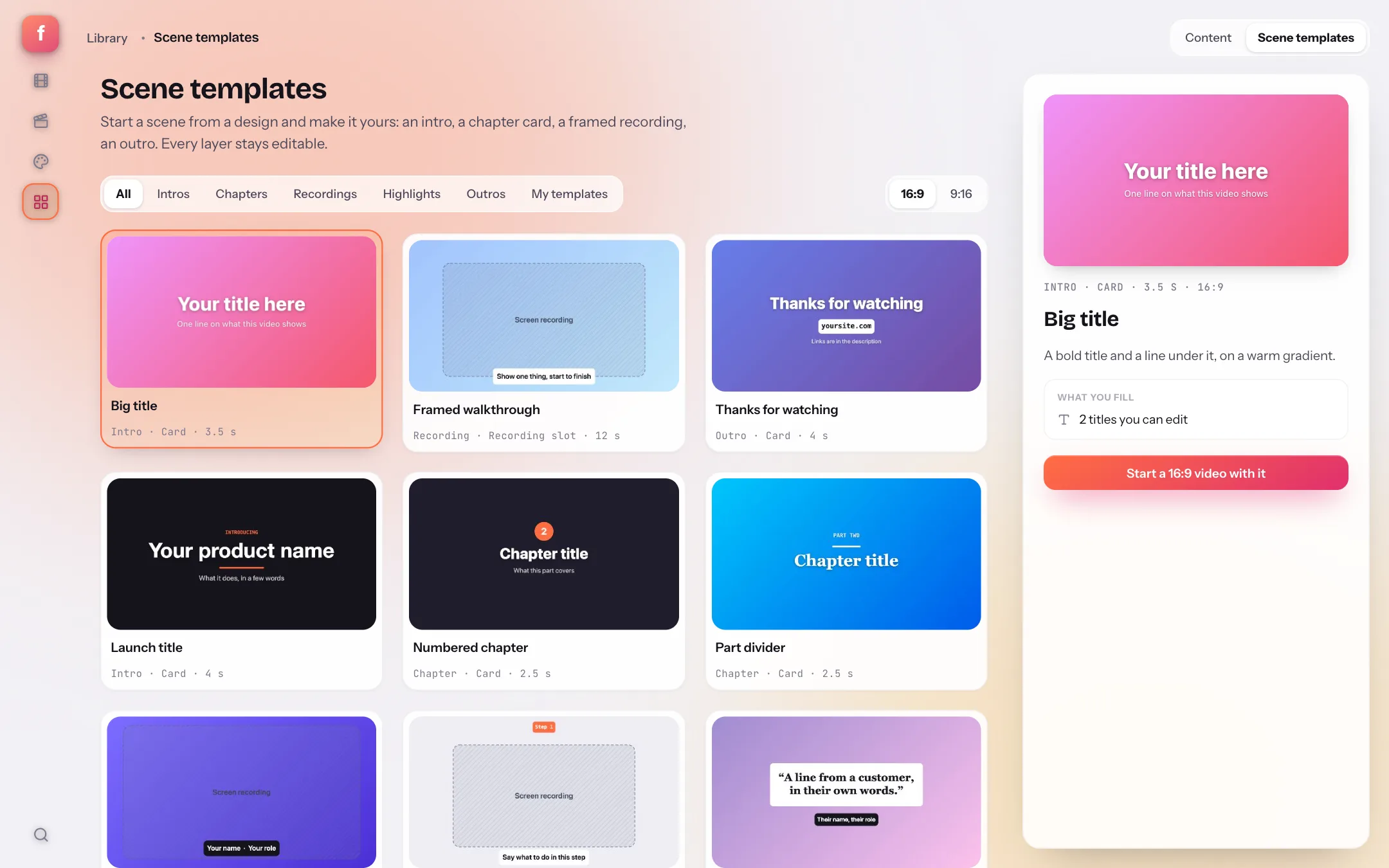
Select the take, press + Scene again and pick From a template… — Thanks for watching is one of the free starters, with a line for your site. Or add a plain title card and write it yourself. Cards come after the active scene, so with the take selected the outro lands last.
Step 3: Choose the transitions
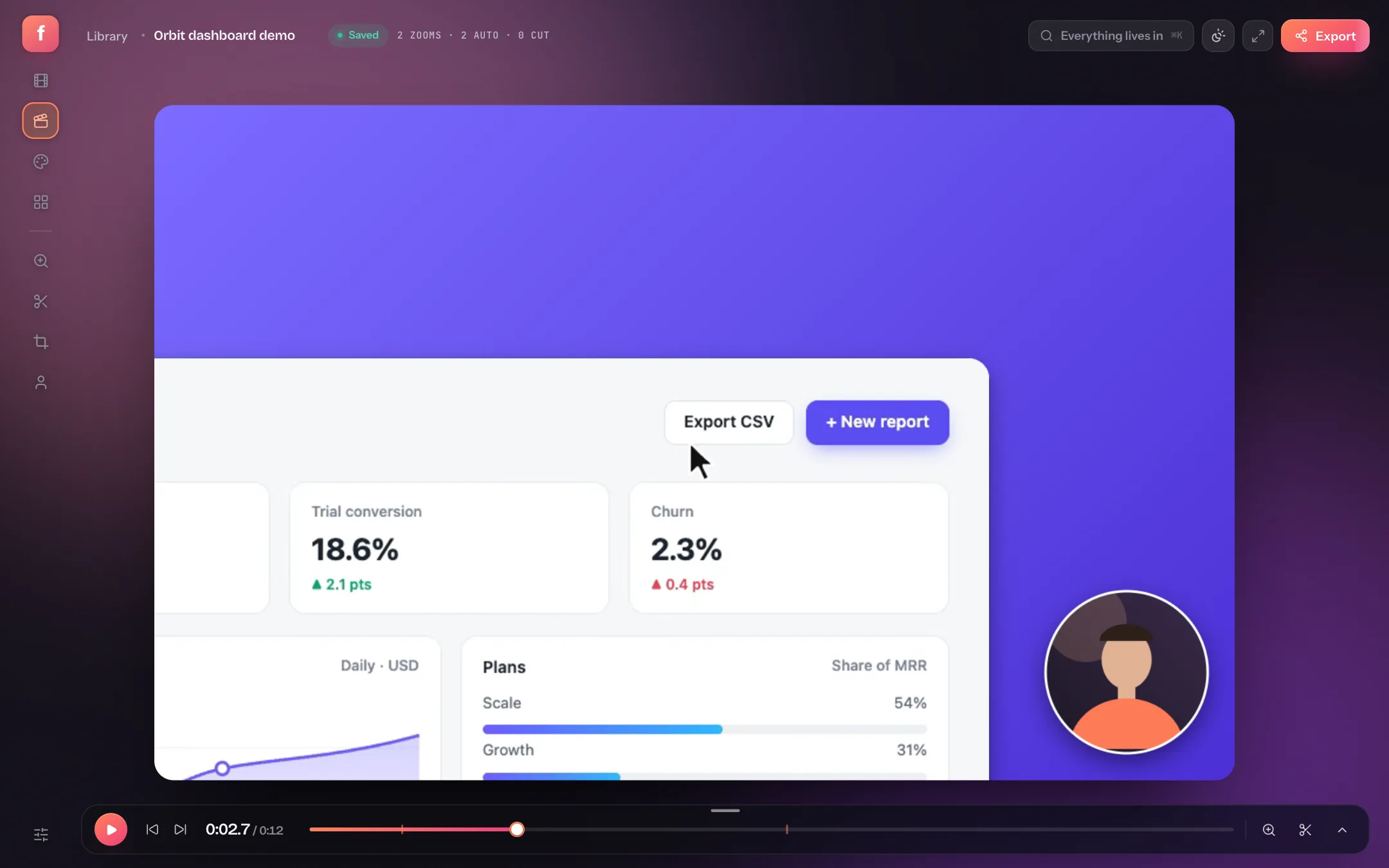
Click the seam between the intro and the take. The popover is titled after the arriving scene — How Recording arrives — because a transition belongs to the scene it leads into. Pick a kind, drag the length, and for a fade choose whether it passes through black or white; slides and wipes get a direction.
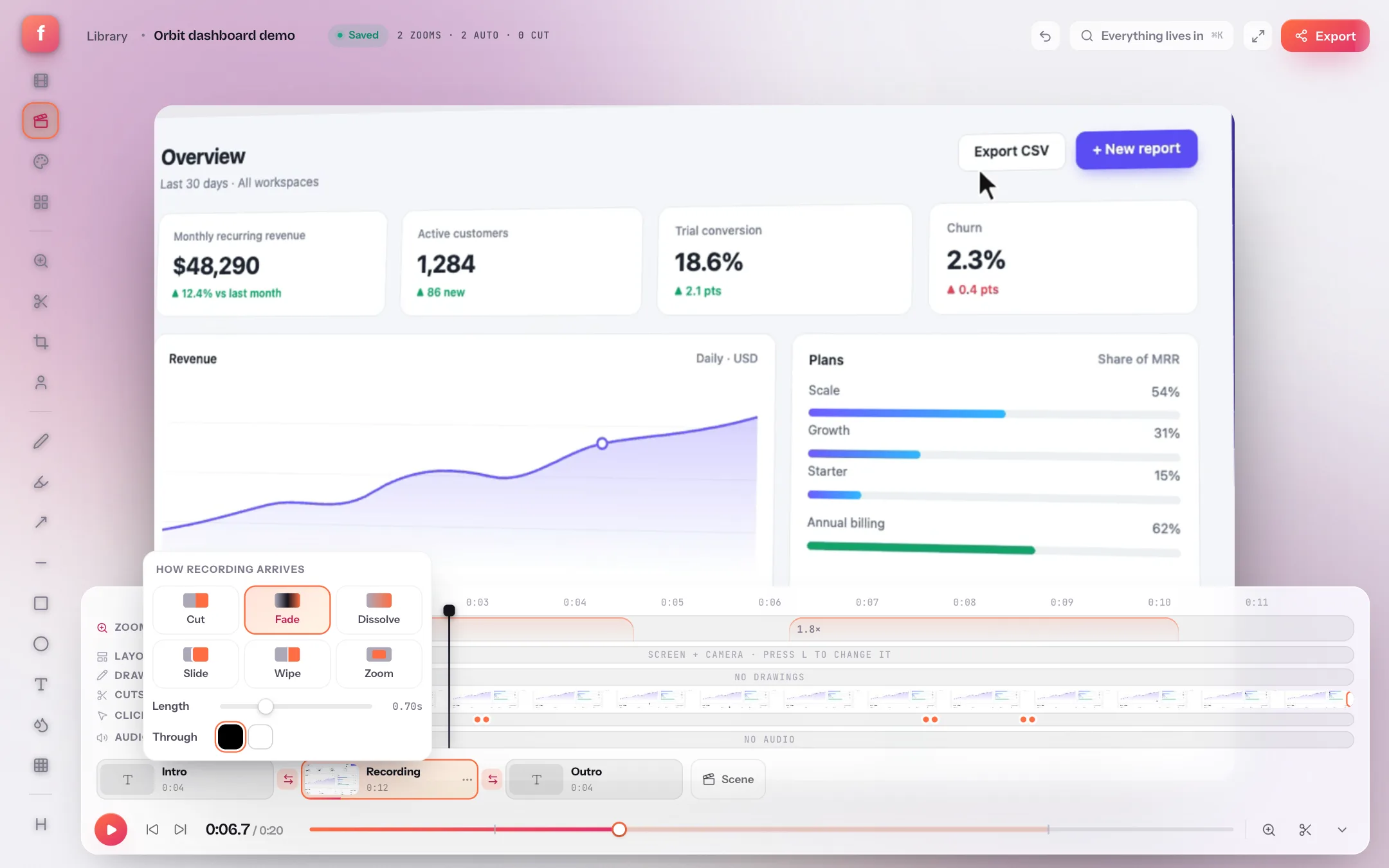
- Six kindsCut is instant. Fade passes through a colour; Dissolve crosses the two pictures; Slide and Wipe move in a direction; Zoom pushes through.
- Length0.2 to 2 seconds. Half a second is brisk; 0.7 is the default; a second is cinematic.
- ThroughBlack suits dark cards and screen content; white suits light backdrops.
- The seamShows the chosen transition and its length; click again to change it.
| Seam | Pick | Why |
|---|---|---|
| Title card → recording | Fade through black, 0.6–0.8 s | Closes the card cleanly and lets the screen appear whole |
| Recording → recording | Cut or Dissolve, 0.4 s | Two takes of the same app should feel continuous, not staged |
| Recording → chapter card | Slide to the left, 0.5 s | Signals a new part without stopping the flow |
| Anything → outro | Fade, 0.8–1 s | A slow fade is the universal sign that the video is ending |
Step 4: Add more takes, or split one
The strip is not limited to cards. + Scene can record a new take straight into the project — the countdown runs, and the take lands as the next scene — or bring in a recording from your library (copied, so each project keeps its own) or a video file. Press ⇧S to split the active take at the playhead into two scenes, which is the quickest way to put a chapter card in the middle of a long walkthrough. ⌥← and ⌥→ step between scenes.
Step 5: Export one file
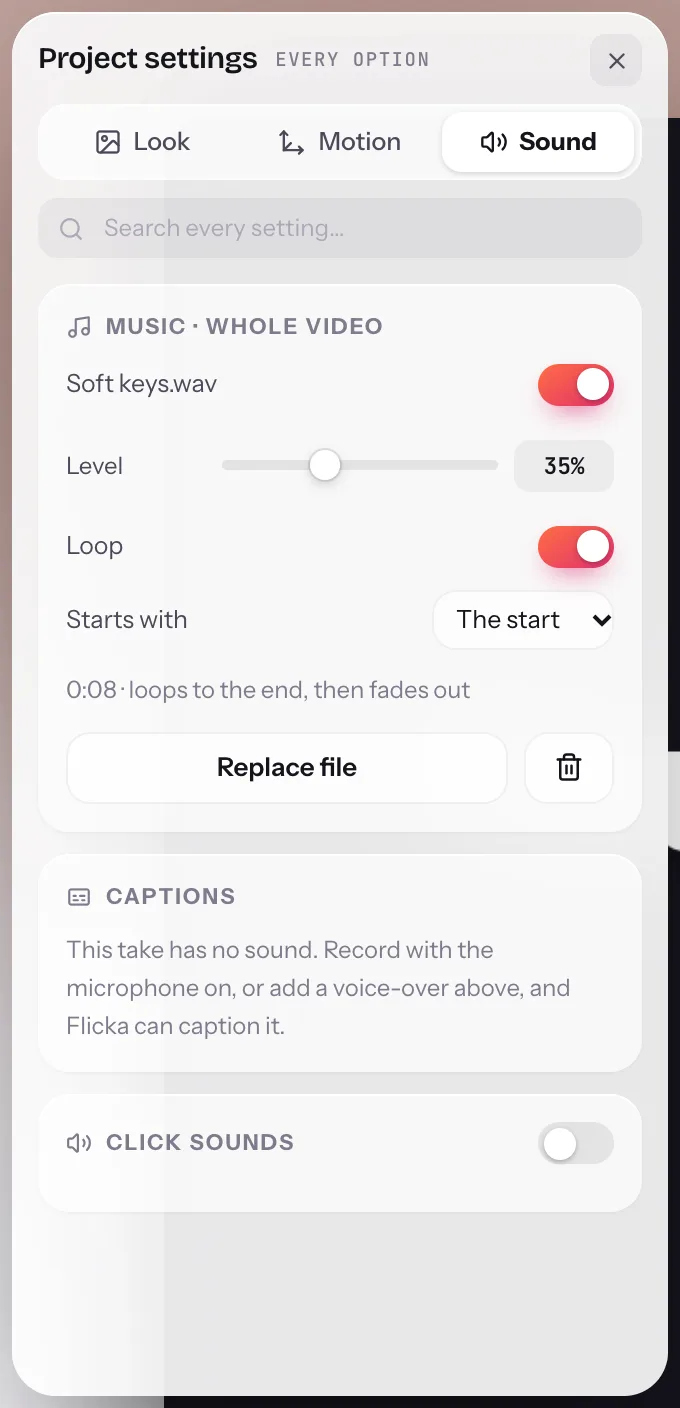
Export renders the scenes in order with their transitions, music under the lot, and every take's zooms and cuts in place — as one MP4, WebM or GIF, on your device. The export guide covers the platform presets; nothing about them changes with scenes.
- ⇧SSplit the scene at the playhead
- ⌥← · ⌥→Previous · next scene
- ⇧TAdd a title layer
- ⌘D · ⌫Duplicate · delete the selected layer
- ] · [Bring the layer forward · send it back
Intros, outros and transitions: quick answers
Can I combine several screen recordings into one video?
Yes. Every recording is a scene on one strip. Add one from your library, record a new take straight into the project, or drop in a video file. Scenes play back to back with a cut or a transition between them, and export as one file.
How many scenes are free?
Two: your first take and one more, which is enough for a title card and the recording. Transitions, image layers and more scenes are Pro.
Which transitions are there?
Cut, Fade (through black or white), Dissolve, Slide and Wipe (in four directions) and Zoom, each from 0.2 to 2 seconds. A transition runs inside the arriving scene, so it never changes when your clicks happen.
Do scenes share a look?
A new title card wears the look of the scene it follows. Change one scene's backdrop or frame and choose "Use this look everywhere" from its menu to copy it to the rest.