How to create beautiful code screenshots (and tweet mockups)
Pasting a real screenshot of your editor shows every tab and warning. A generated code image shows only the code, in the theme you choose.
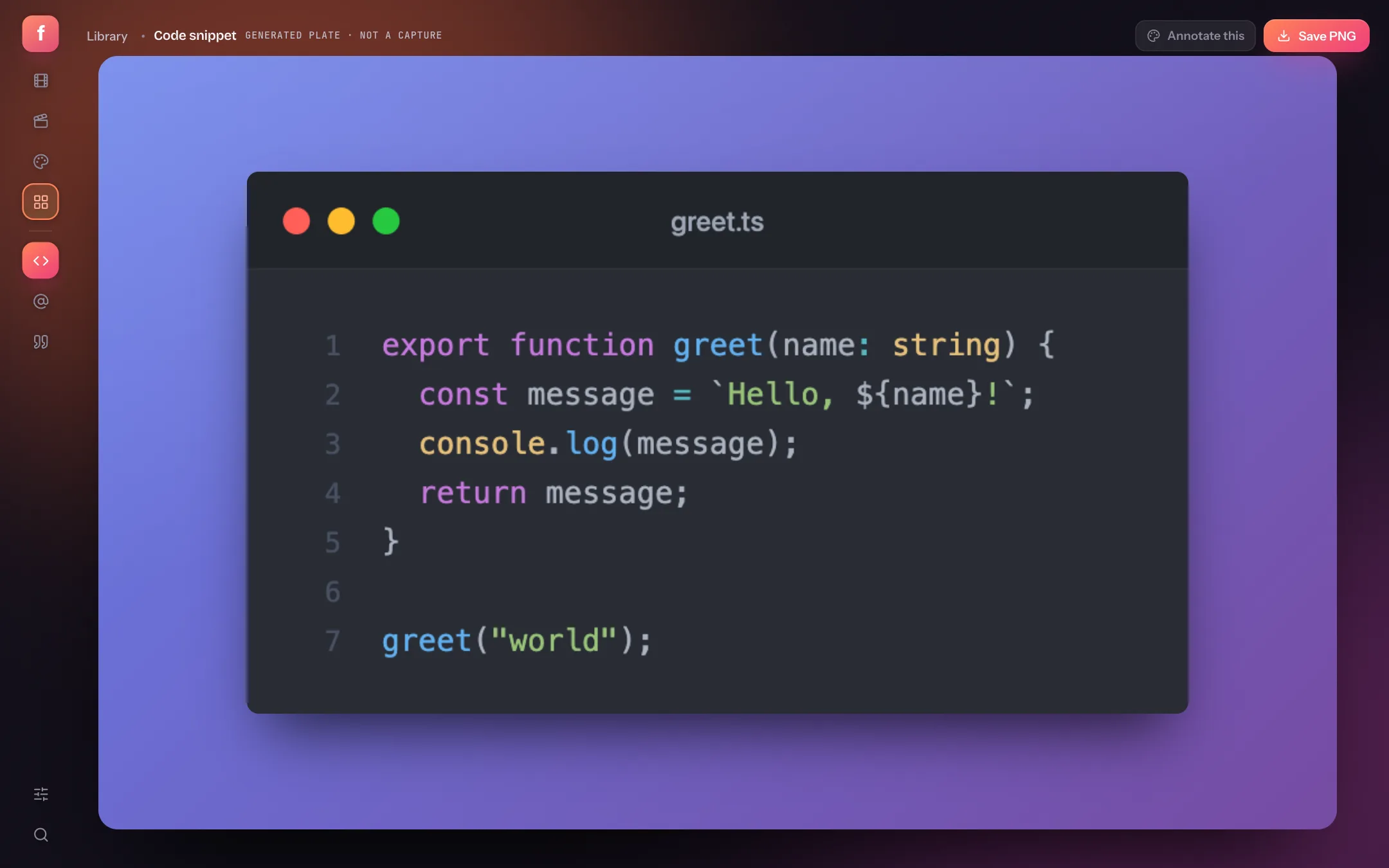
Code in a tweet, a slide or a blog post is easiest to read as an image: consistent font, proper syntax colours, no wrapping surprises. A screenshot of your actual editor drags in file tabs, lint squiggles and your sidebar. A generated image contains only the snippet.
Flicka's templates render three kinds of content card — code snippets, tweets and testimonials — on the same backdrops and frames as screenshots, and export them as PNGs.
- ContentOpens the fields for the card: code, language, theme and options. Shortcut: Tab.
- Save PNGExports the card at high resolution.
Make a code screenshot in four steps
Open templates and choose Code snippet
In the extension's library, go to the templates workspace from the rail. Code snippet is the first template.
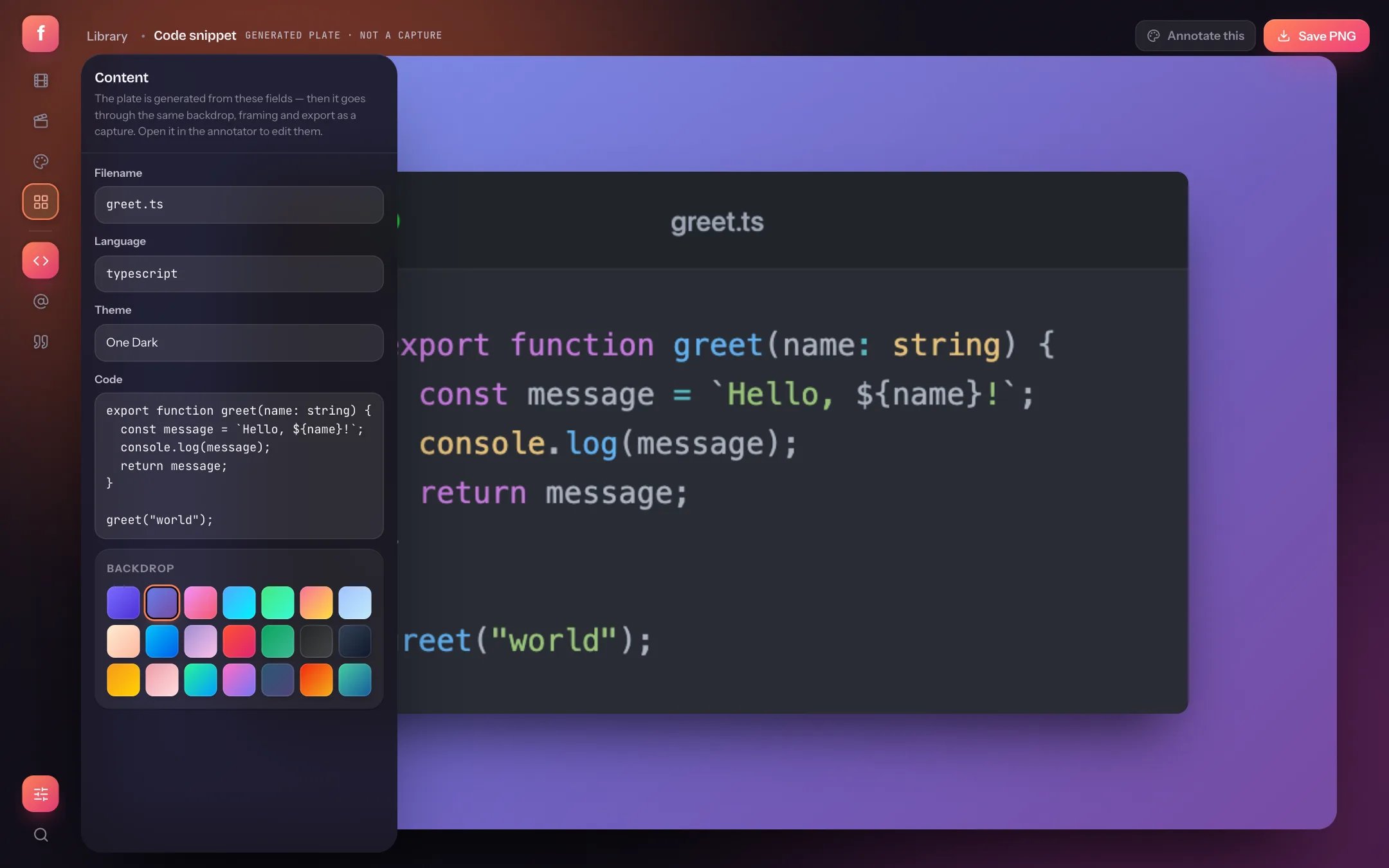
Paste your code and pick the language
Paste into the code field and choose from 20 languages, including TypeScript, TSX, Python, Go, Rust, Swift, SQL and Bash, so highlighting is accurate.
Choose a theme and window
Six editor themes — One Dark, VS Code Dark, Dracula, Nord, GitHub Dark and GitHub Light. Toggle the window bar, set a filename, and show or hide line numbers.
Highlight the lines that matter, then save
Enter lines like 2, 5-7 to emphasise them. Press Save PNG, or Annotate this to add arrows and callouts on top.
Tweet mockups for launches and landing pages
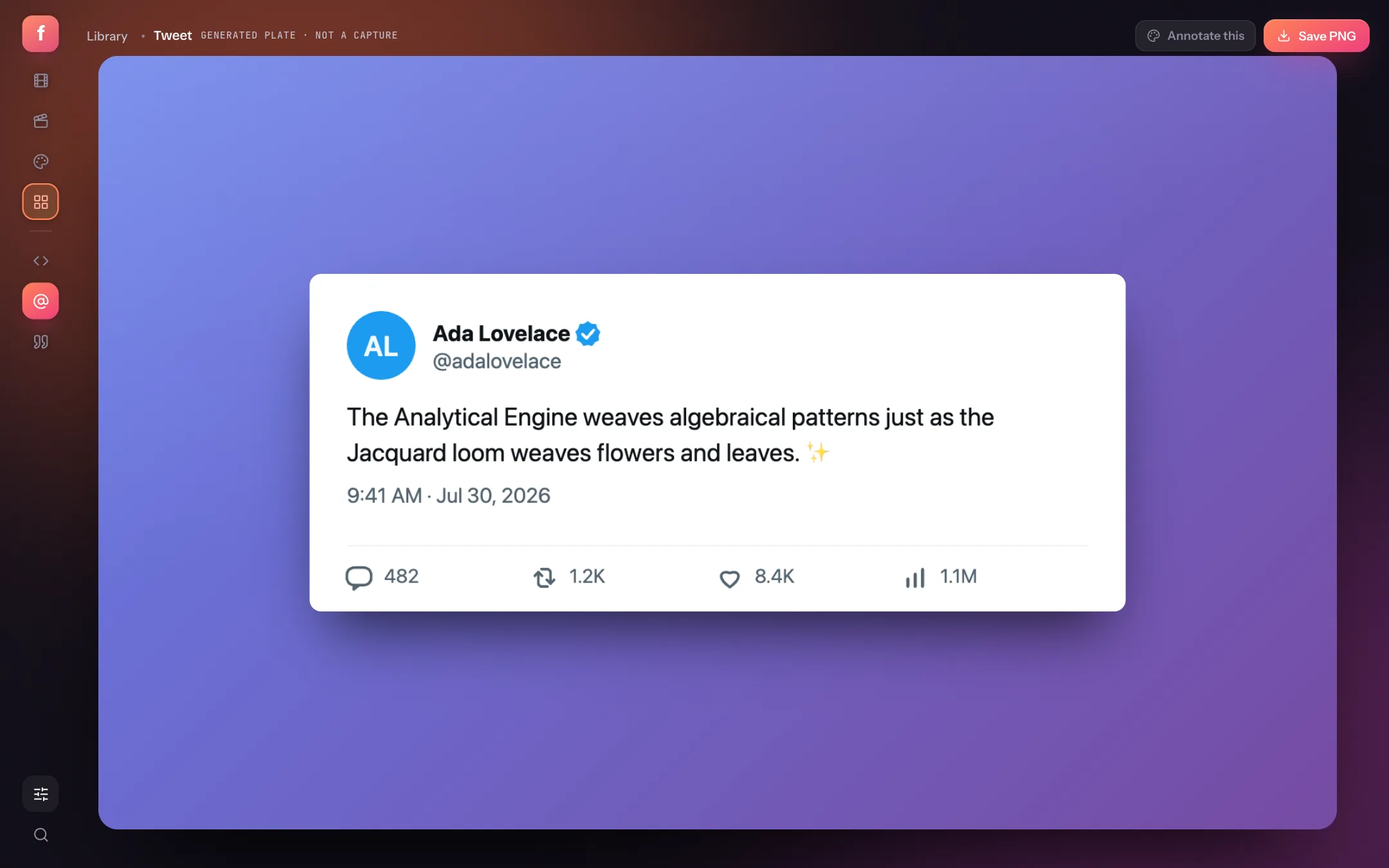
The Tweet template recreates a post card: name, handle, verified badge, avatar, text, timestamp, an optional attached image, light or dark theme, and reply, repost, like and view counts you can edit or hide.
Testimonial cards
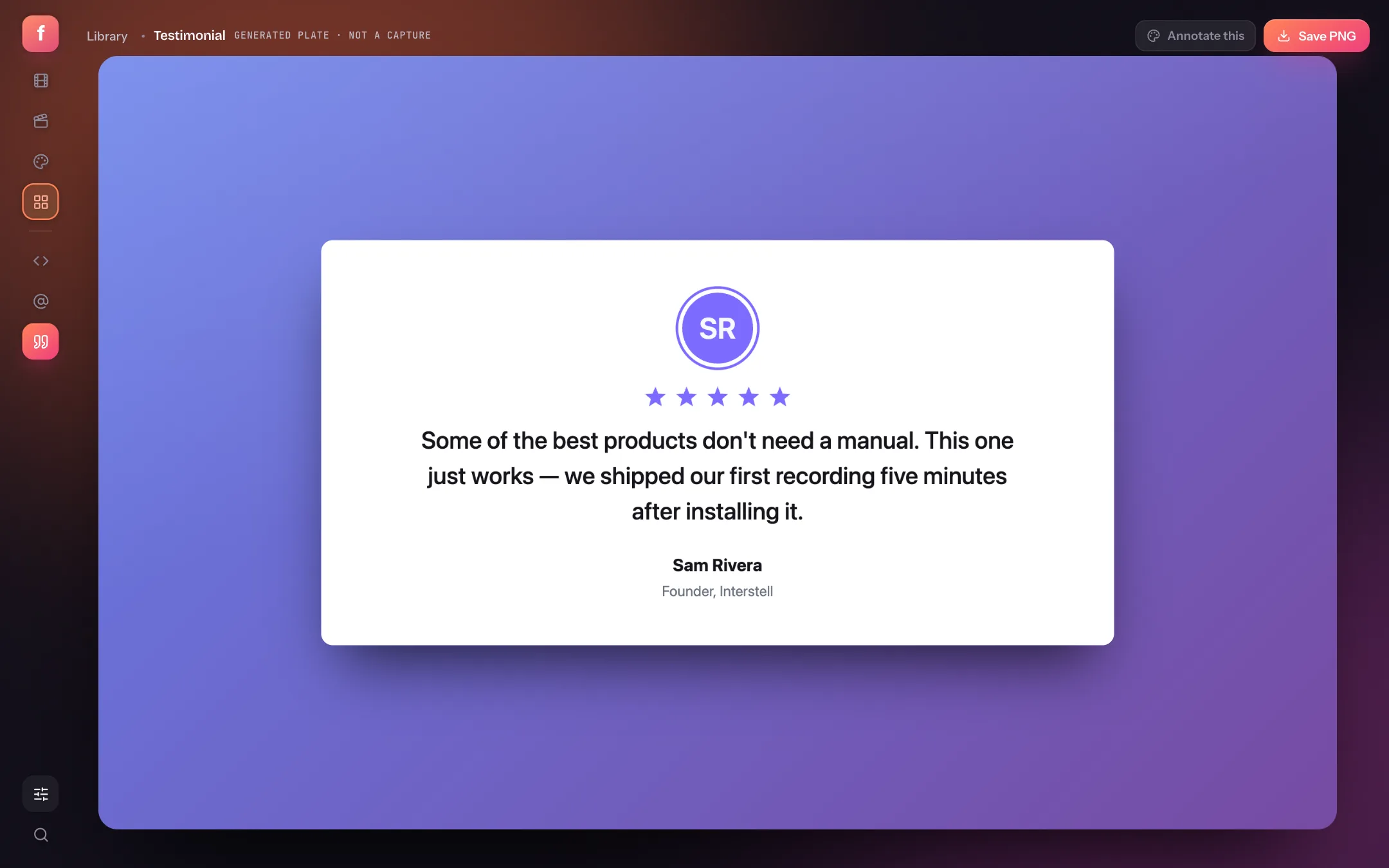
The Testimonial template sets a quote with the person's name, role, star rating and avatar, in card, quote or minimal layouts, with an accent colour and light or dark theme. It's the quickest way to turn a line from a review into social proof for a pricing page or an ad.
Finish the card like a screenshot
Templates sit on the same Look settings as everything else: gradients, padding, shadows and canvas sizes. The screenshot styling guide covers which backdrop and size to use for each platform.
Code screenshots: quick answers
How do I turn code into an image?
Open Flicka's Code snippet template, paste your code, choose the language and theme, and press Save PNG.
Which languages are supported?
TypeScript, JavaScript, TSX, JSX, Python, Java, C, C++, C#, Go, Rust, Ruby, Swift, Kotlin, PHP, SQL, Bash, JSON, YAML and HTML/XML.
Can I add arrows or notes to a code screenshot?
Yes. Press Annotate this to open the card in the annotator with every drawing tool.