How to record your screen on Windows 10 and 11
Game Bar records one app at a time and Snipping Tool stops at a raw clip. This is how to record the whole desktop with audio and get a finished video.
Windows has two built-in recorders, and each covers half the job. Xbox Game Bar (Win + Alt + R) records the active app but can't capture the desktop or File Explorer. Snipping Tool records a region of the screen, but gives you a plain clip with no editing beyond a trim.
If you want the whole desktop with sound and a video that's ready to share, Flicka does it from a Chrome extension: no desktop app, no account needed to record, and the video never leaves your PC.
Before you start
- Use Chrome or Edge. Both are Chromium browsers and support every capture option, including system audio for the entire screen.
- No special Windows permission is needed for screen capture. You'll only be asked for the microphone and camera if you turn them on. If the mic is blocked, check Settings → Privacy & security → Microphone and allow desktop apps.
- Close what shouldn't be seen. Full-screen recordings include notifications. Turn on Do not disturb from the notification centre first.
Step 1: Pick a source and audio
Add Flicka for Chrome and click its icon. The popup is one sentence; turn its first word to the whole screen and its second to the computer's audio (or both, with your mic) — the combination the built-in tools can't give you.
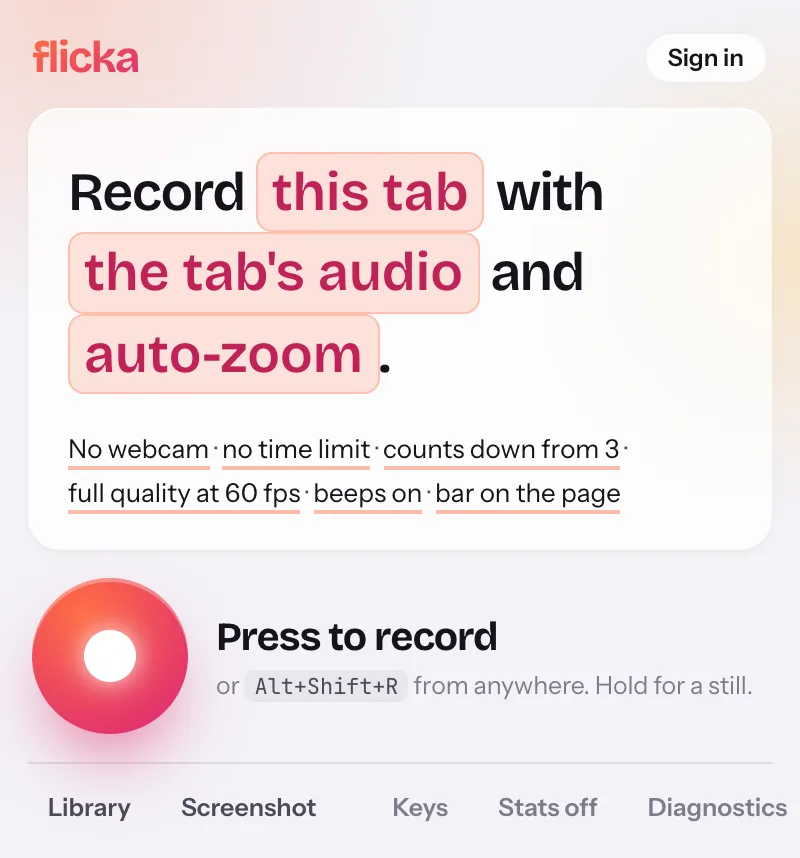
- The whole screenEverything on the display you choose, including the desktop and File Explorer.
- The computer's audioOn Windows, Chrome and Edge can include audio from the entire screen, not just one tab. Pick both to narrate over it; the two levels stay separate afterwards.
- Auto-zoomAdds zooms on the clicks Flicka can see when the take opens.
- The shutterOr press Alt+Shift+R on any page.
Step 2: Share the screen with audio
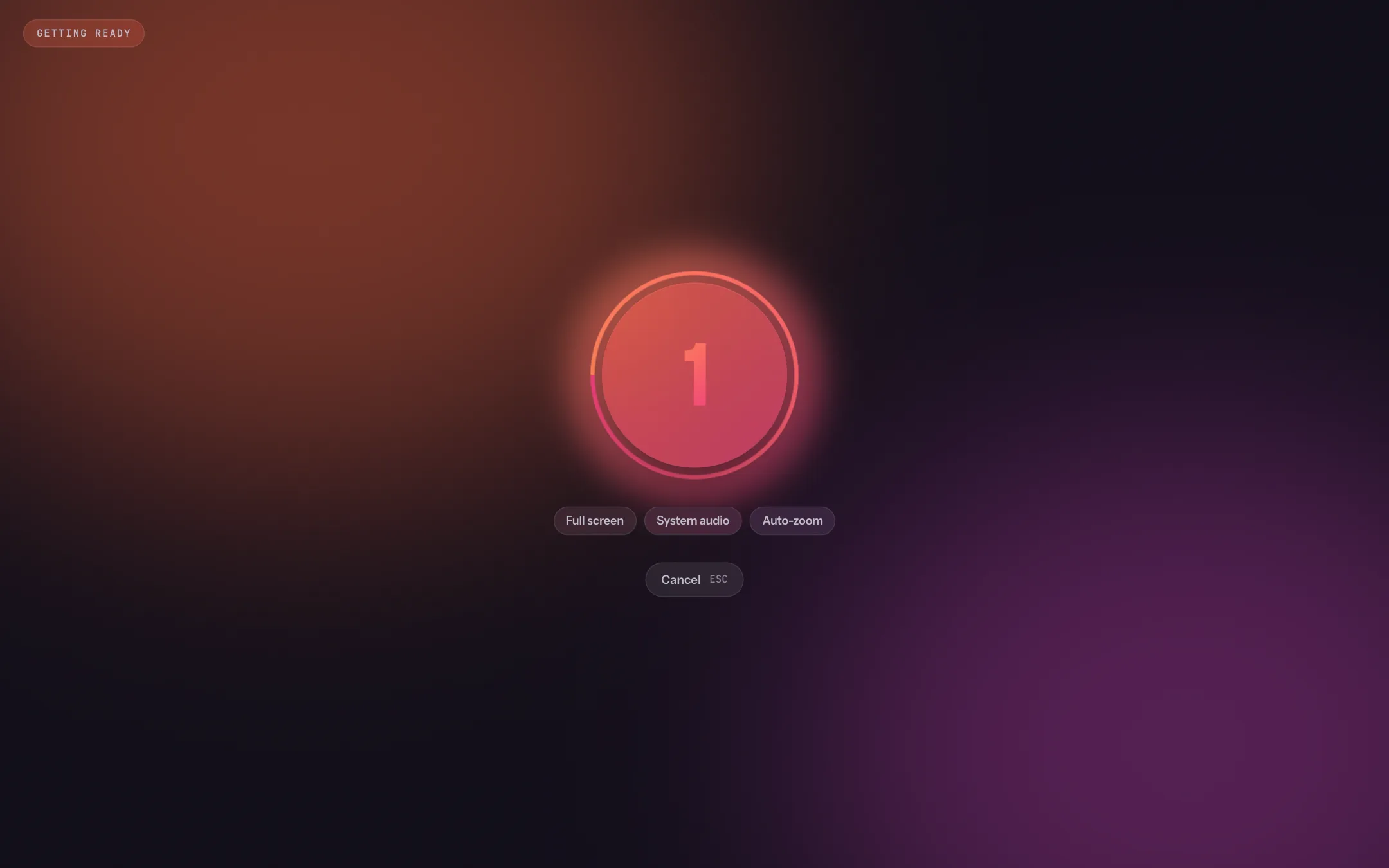
After you press the shutter, Chrome or Edge asks what to share. Choose the Entire screen tab, select your display, and turn on Also share system audio at the bottom of the dialog. Then click Share and Flicka counts down from three on the page you started from.
Step 3: Record and stop

- MicMute and unmute; hold U to talk.
- Mark upDraw, blur or spotlight on the page while it records.
- PauseTake a breath without splitting the recording.
- StopOpens the recording in the editor.
Step 4: Clean it up and export
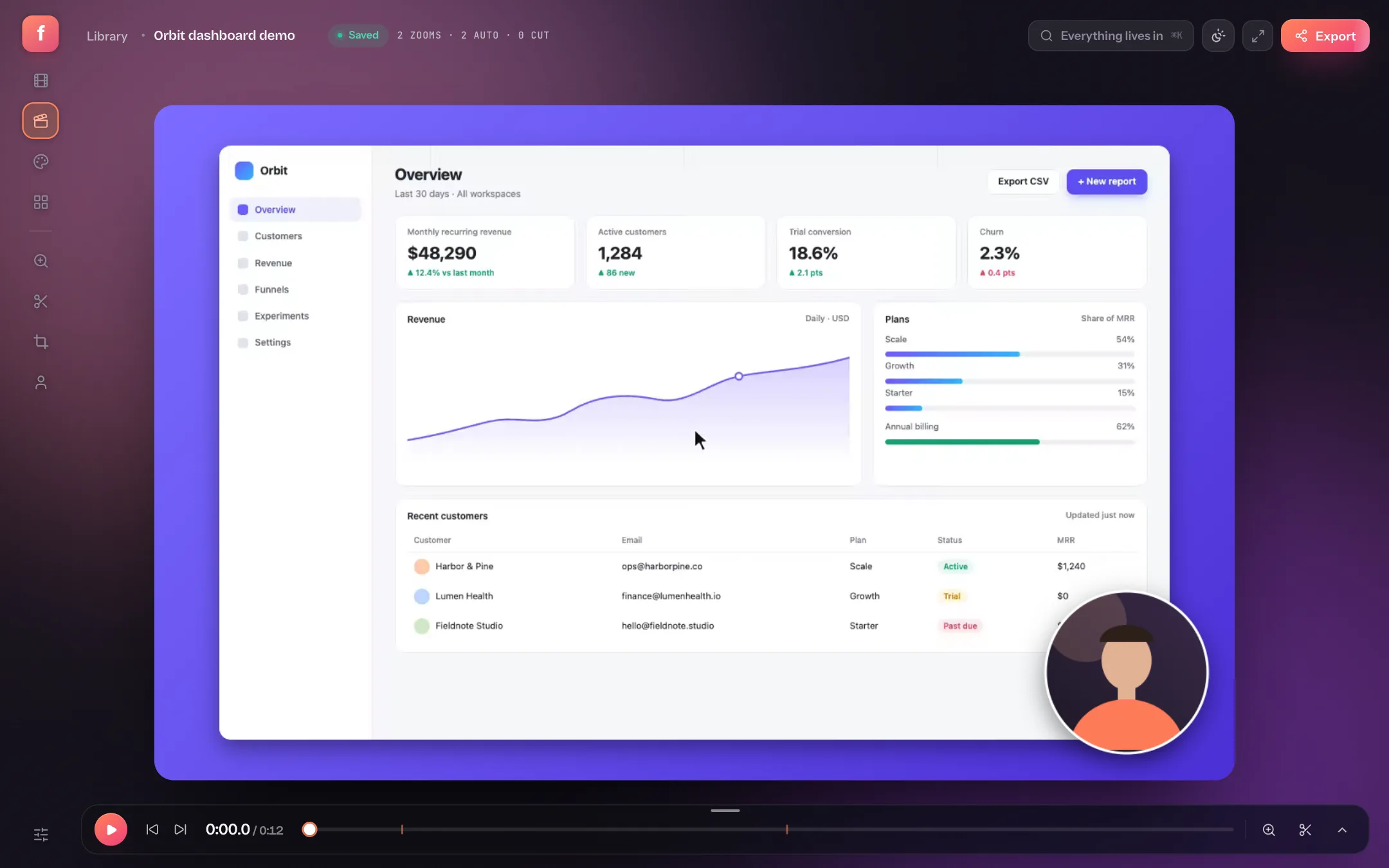
The take opens with a backdrop and zooms already applied. Trim the start and end on the timeline, remove mistakes in the middle with a cut (C, on Pro), and click Export.
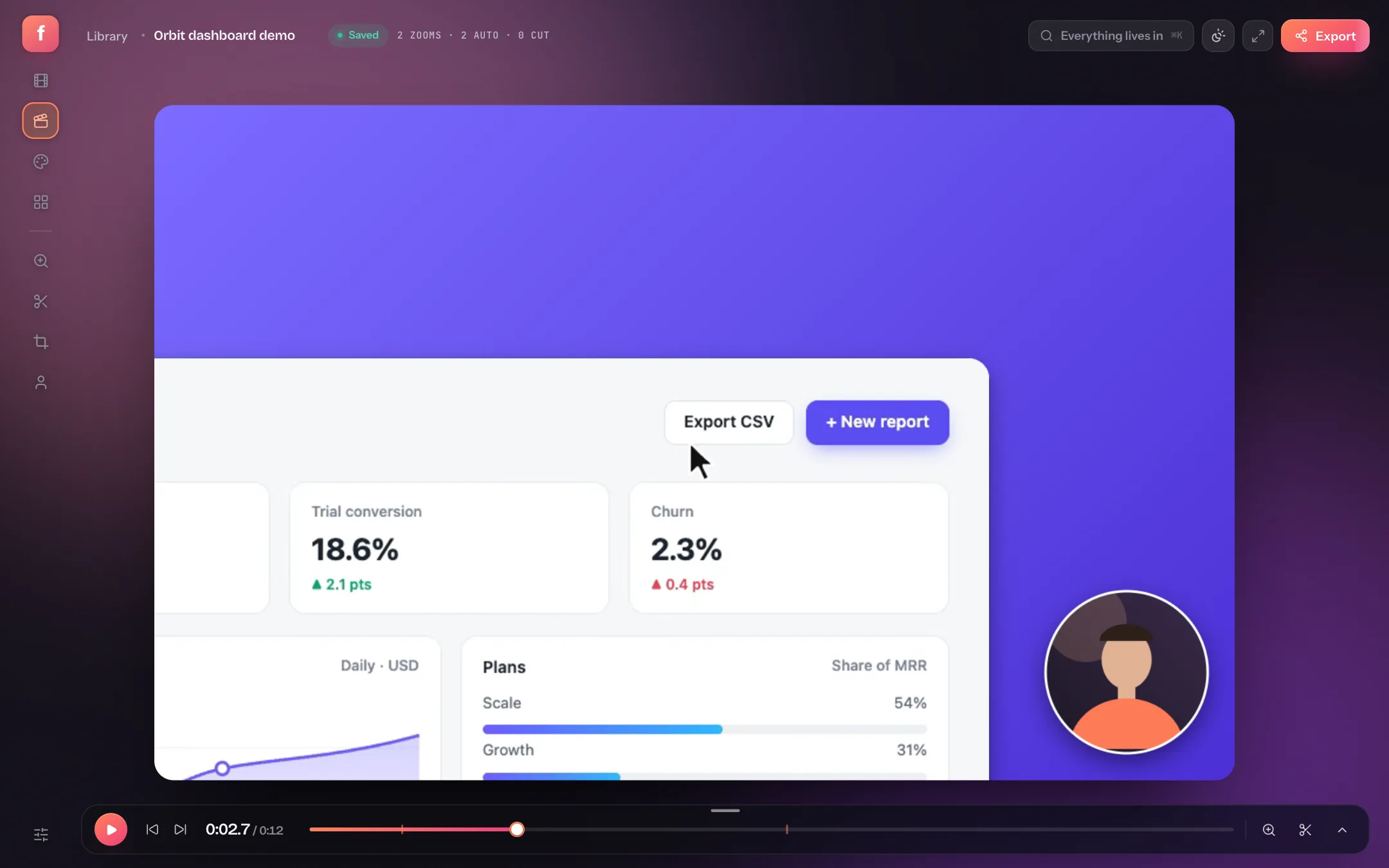
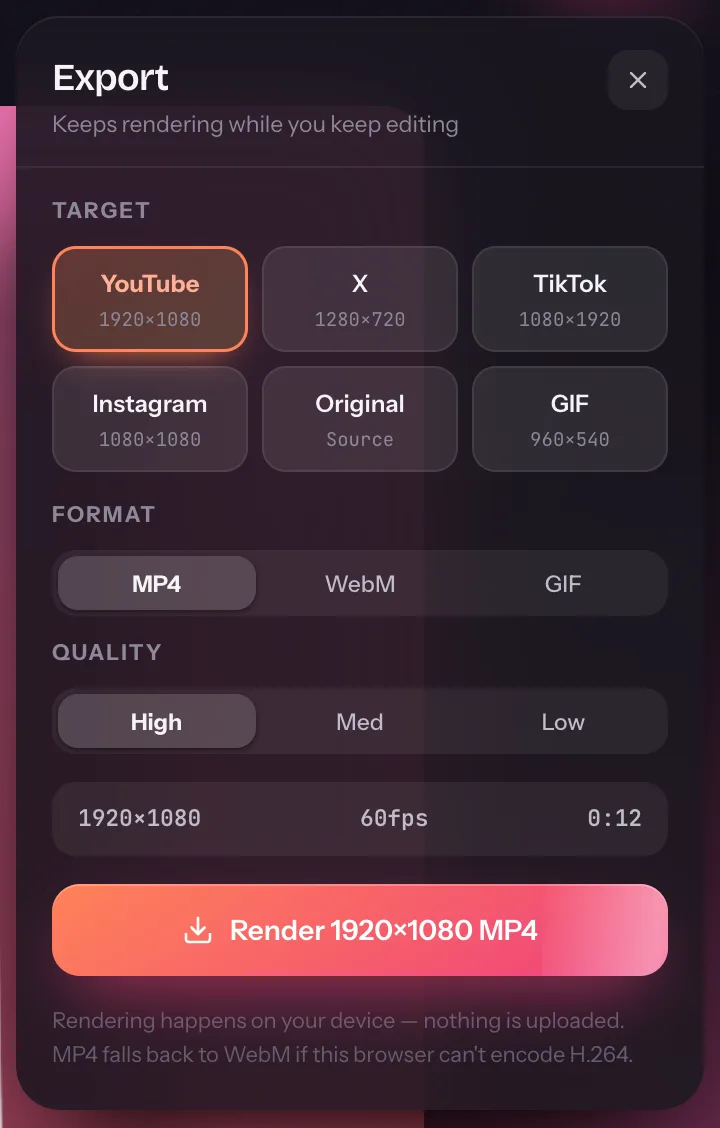
The export sheet has presets for YouTube, X, TikTok, Instagram and GIF. The export guide covers which to pick for each platform.
Game Bar, Snipping Tool or a browser recorder?
| Xbox Game Bar | Snipping Tool | Flicka | |
|---|---|---|---|
| Record the desktop and File Explorer | No | Yes | Yes |
| Record one app window | Yes | Region only | Yes |
| System audio | Yes | Depends on version | Yes, in Chrome and Edge |
| Webcam as an editable layer | No | No | Yes (Pro) |
| Zooms, backdrops, cursor effects | No | No | Yes |
| Cuts and trims | No | Trim | Trims and cuts |
| GIF export | No | No | Yes |
Game Bar is built for gameplay and is the right tool there. For tutorials, onboarding videos and demos, where the viewer needs to follow a cursor around a busy screen, the zooms and framing do more for clarity than any resolution setting.
Recording your screen on Windows: quick answers
How do I record my screen on Windows with sound?
In Flicka, choose Full screen, turn on System audio, and tick Also share system audio in Chrome or Edge's share dialog. Turn on Mic too if you want to narrate.
Why can't Xbox Game Bar record my desktop?
Game Bar is designed to capture apps and games, so it's unavailable on the desktop and in File Explorer. Use a full-screen recorder instead.
Does this work on Windows 10?
Yes. Flicka runs in Chrome or Edge, so it works the same on Windows 10 and 11.
How long can a recording be?
There's no limit on any plan. Longer recordings use more of your browser's storage, which the library header shows as free space.